
The Microsoft 365 plan with the most familiar apps may not be the best fit for your organisation. Choosing 365 by app count alone can leave teams with licences they don’t use, or gaps in the security and administration they need.
With several business plans and different staff needs to consider, it can be difficult to know where to start. A better approach is to map how people work, what information they need to access and who will manage the environment over time.
This guide explains how to compare Microsoft 365 options against your organisation’s workflows, governance needs and support requirements. You’ll learn what to consider when assessing apps and licences, planning security and permissions, and supporting adoption. The aim is a well-managed setup that gives people the tools they need today and can adapt as your organisation changes.
Key Takeaways
- Start with the outcomes your organisation needs, then map the day-to-day workflows and user groups that support them.
- Compare 365 options by administration, security, support and flexibility, not just the apps staff will use.
- Separate what a licence includes from the planning, governance and ongoing management needed to make it work well.
- Plan implementation around your current environment, staff communication, access, file organisation and support responsibilities.
- Consider how SharePoint, Teams and licence optimisation can help create a more connected and accountable Microsoft 365 environment.
What should a business expect from Microsoft 365?
Microsoft 365 is a subscription suite of productivity apps and cloud services that helps people communicate, create documents, share files and collaborate. It’s not one standalone application. The services and plan an organisation selects determine which tools staff can use, while configuration shapes how those tools work together.
For example, a team might discuss a project in Teams, draft a proposal in Word, store shared working files in SharePoint and coordinate meetings in Outlook. This can make everyday work easier to manage, but licences alone don’t create a connected workplace. Services, access settings and ways of working need to suit the business.
The Microsoft 365 overview provides background on the suite and its development. For a business decision, the practical question is how its tools support your people, information and processes.
Which Microsoft 365 apps support everyday business work?
Word supports written work such as proposals and policies. Excel helps teams organise information, analyse figures and maintain working spreadsheets, while PowerPoint is used to shape information into presentations. Outlook brings email and calendar coordination together, and Teams supports conversations, meetings and day-to-day coordination.
OneDrive and SharePoint both support file storage, but they serve different purposes. OneDrive suits an individual’s work files, including files they choose to share. SharePoint is designed for shared team or organisational content, where people can work from a common space. Agreeing where different files belong helps staff find current information and collaborate consistently. For example, a draft owned by one person may sit in OneDrive, while an approved team resource belongs in a shared SharePoint location.
These tools can connect communication, documents and shared files. However, don’t assume every app or capability is included in every subscription. Check plan entitlements and consider how the organisation will configure and manage the services it selects.
How is a business environment different from personal use?
Business use is organised around work or school accounts, shared resources and administration. An organisation can manage staff access and the services associated with those accounts, supporting clearer ownership as people join, change roles or leave.
A personal Microsoft account is separate from a work or school account, even if someone uses the same email address for both. Keeping the distinction clear helps staff understand which account holds work files and which is for personal services. It also gives the organisation a more consistent basis for managing shared work and access.
Before choosing a setup, consider how people actually work: which tasks are individual, which rely on shared information, and who needs to manage access. That gives you a stronger starting point than choosing by app list alone.
How to compare Microsoft 365 options against your business needs
The right Microsoft 365 option depends on who needs access, how your teams work and which services the organisation requires. A structured comparison helps you choose for business outcomes rather than selecting a plan based on the length of its app list.
Which workflows and users should shape the comparison?
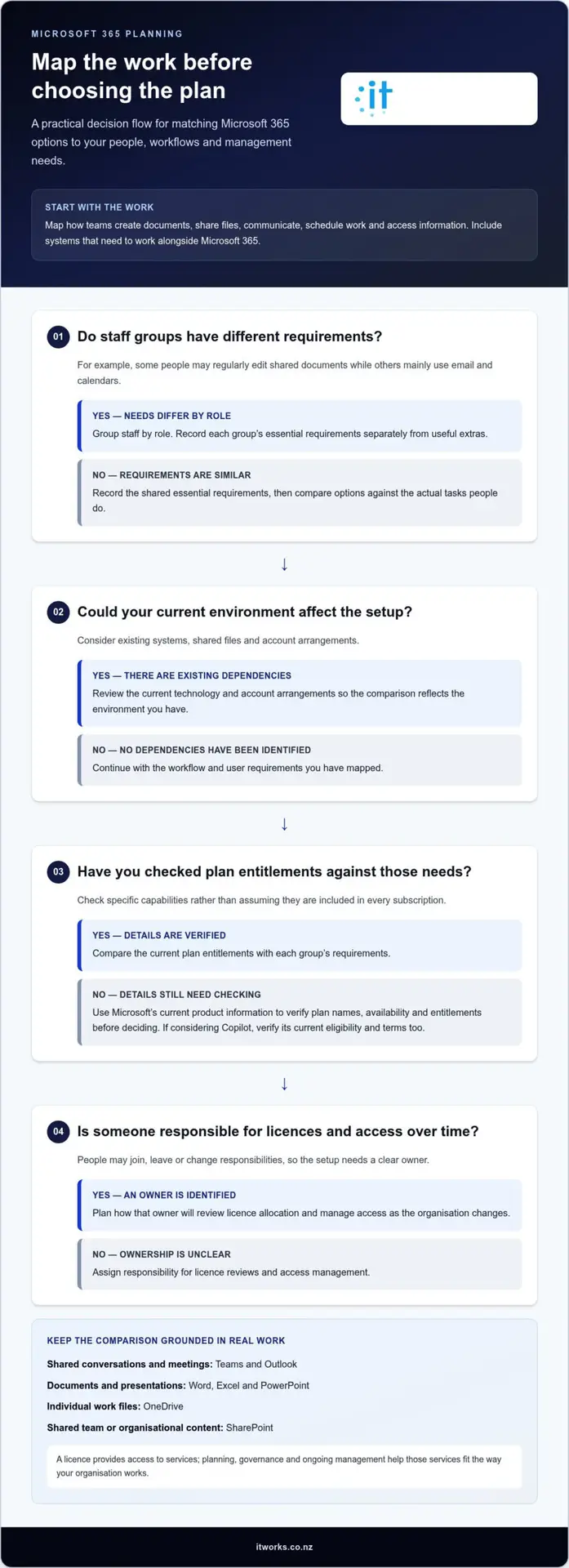
Start by mapping how work happens now. Note how teams create documents, share files, communicate, schedule work and access information. Include systems that need to work alongside Microsoft 365, so your comparison reflects the actual environment, not an idealised one.
Then group staff by role and requirements. A team that regularly edits shared documents may have different needs from staff who mainly check email and calendars. Record each group’s essential requirements separately from useful extras. This makes it easier to compare plans against real tasks, rather than assuming every employee needs the same tools.
How should organisations assess licences and future needs?
Use this decision process to narrow the options:
- Set the outcomes. Identify what needs to improve, such as making shared information easier to find or coordinating work across teams.
- Match needs to users. Record which groups need particular apps, collaboration services, file access or other capabilities.
- Review your current technology. Consider existing systems, shared files and account arrangements that could affect the setup.
- Compare plan entitlements. Check current Microsoft plan names and details against your requirements. Use Microsoft’s current product information to verify availability and entitlements before deciding.
- Plan for change. Decide how licences and access will be reviewed as staff join, leave or change responsibilities.
Check specific capabilities rather than assuming they come with every plan. This matters when considering Copilot: eligibility and terms can depend on the plan and may change. Verify current details before including it in your decision.
Review licence allocation over time, too. Aligning licences with actual responsibilities can support clearer administration and help avoid paying for capabilities a user doesn’t need. Assign an owner to review licences and manage access as the organisation changes.
If you’d like help connecting workflows, licensing and administration, explore Microsoft 365 management advice from IT Works.
What should you compare beyond the Microsoft 365 app list?
The apps are only part of the decision. A suitable setup also needs to fit your workflows, support clear administration, align with your security practices and remain manageable as the organisation changes. Compare what a plan includes with the work needed to configure and support it.
| Comparison area | What to assess |
|---|---|
| Workflow fit | Do the services support how staff create, share and access information? |
| Administration | Who manages accounts, permissions, licence allocation and configuration? |
| Security | How will access be managed, and how does the setup align with existing security practices? |
| Support | Who helps staff, maintains the environment and answers questions about using the tools? |
| Future flexibility | Can the approach adapt as roles, workflows and organisational needs change? |
Use current Microsoft plan information to confirm included services and entitlements. Licence features are different from broader management and implementation work. Planning access, organising shared information, guiding staff and reviewing licence use all need clear ownership. A plan alone doesn’t determine how effectively those responsibilities are handled.
How do security and administration affect the decision?
Consider how staff access work accounts and shared information, who is responsible for granting or changing access, and how these arrangements fit your existing security practices. Security depends on appropriate configuration, sensible access practices and ongoing management, not a licence in isolation. For more on administration and ongoing oversight, read this Microsoft 365 management guide.
As a further comparison, Comparing Microsoft 365 Business Premium and Enterprise Plans can provide additional context on plan differences. Check current Microsoft documentation before relying on plan-specific details.
When should Copilot readiness influence your choice?
Begin with a practical task and a clear goal, such as helping staff prepare a first draft or summarise information. Then consider whether the relevant data is well organised, access permissions reflect current responsibilities, and staff understand appropriate use. Copilot availability and terms depend on eligibility, so verify current details rather than assuming it comes with a particular subscription.
Responsible adoption also requires attention to information governance and staff guidance before wider use. For related planning considerations, see the Microsoft Copilot business introduction.
How to plan Microsoft 365 implementation and ongoing management
A well-planned rollout connects the technology to the way people work. It also gives staff clarity about where to find information, how to access shared resources and who can help if something isn’t working as expected.
Use a practical sequence:
- Review the current environment. Record the tools in use, staff groups, shared files and business-critical workflows. Note dependencies, such as files or processes that rely on existing systems.
- Plan the changes. Decide what will move or change, how information will be organised, and who is responsible for access, decisions and communications.
- Prepare users. Explain what’s changing, where staff will work and how they can get support. Provide guidance that reflects different roles and day-to-day tasks.
- Roll out in a managed way. Coordinate access and changes to shared information so teams can continue their work. Make support responsibilities clear during the transition.
- Review and refine. Gather feedback, address recurring issues and revisit settings, processes and licence allocation as needs evolve.
What preparation makes a rollout more manageable?
Good preparation helps avoid confusion around access and file locations. Before changing how staff share information, check which teams rely on particular files, who needs access and whether existing processes depend on them. Set out who will make decisions, communicate changes and respond to user questions. For guidance on the operational role of ongoing support, see this managed IT support guide.
What should an organisation review after deployment?
Once staff are using the setup, ask where they’re having trouble with access, collaboration or finding information. Feedback can point to practical improvements, such as clearer file organisation or more useful guidance for a particular team.
Review licence assignments and administration as staff responsibilities change. Check that access still matches people’s roles, and make ownership of these reviews clear. Consider the wider security practices that support the environment, including how accounts and information are managed. The cybersecurity resilience guide explores this broader perspective.
Ongoing management keeps the setup aligned with the organisation, rather than treating implementation as a one-off task. Regular reviews can identify friction, clarify responsibilities and help ensure the services continue to support business needs.
How IT Works can support a considered Microsoft 365 decision
Once you’ve mapped your workflows, licensing needs and governance priorities, the next step is turning that assessment into a manageable setup. IT Works supports organisations with Microsoft 365 management, connecting practical administration with the wider technology decisions that shape how people work.
This includes managing SharePoint and Teams, along with licence optimisation. Clear oversight helps keep tools aligned with staff responsibilities as teams and requirements change. It also connects day-to-day technology support with cybersecurity, cloud solutions and strategic advice, rather than treating Microsoft 365 as a standalone purchase.
What does a practical Microsoft 365 partnership look like?
A considered partnership starts with your organisation’s goals and the way staff need to work. That could mean making shared information easier to manage, clarifying who owns access and administration, or reviewing whether licence allocations still reflect actual user needs.
Ongoing support and advice can then help keep the environment connected to business priorities. Responsibilities are clearer, changes can be planned, and Microsoft 365 decisions can sit alongside wider technology planning. The focus is on practical outcomes and a setup that can adapt as the organisation develops.
What information should you bring to a Microsoft 365 discussion?
You don’t need a finished technical plan. A useful conversation can begin with a clear picture of how work happens today and where the friction lies. Consider bringing notes on:
- How different teams create, share and find information.
- Which user groups have distinct needs or responsibilities.
- Recurring challenges with collaboration, access or administration.
- Your priorities for productivity, security and future change.
These details ground the discussion in your organisation’s needs, rather than assumptions about which apps or capabilities everyone should use. They also provide a starting point for considering licensing, governance and ongoing management together.
For growing organisations, it’s useful to treat Microsoft 365 as part of a wider technology environment. The right approach should support staff today while giving decision-makers a clear basis for reviewing responsibilities and needs over time. A consultative discussion can connect those priorities without requiring every detail to be settled in advance.
Make your Microsoft 365 setup work for the business
The right setup starts with how your people work, not simply which apps are available. Match plan entitlements to user needs, and consider administration, security, support and future change alongside the licence decision. A considered rollout, followed by regular reviews of staff experience and licence allocation, helps keep the environment aligned as responsibilities evolve.
IT Works supports organisations with Microsoft 365 management across SharePoint, Teams and licence optimisation. This work connects day-to-day technology support with strategic advice and cybersecurity, keeping decisions grounded in organisational priorities.
You don’t need every detail resolved before taking the next step. A clear picture of your workflows, user groups and priorities is a practical place to begin.
With the right guidance and ongoing attention, your 365 environment can support confident collaboration today and adapt as your organisation grows.
Frequently Asked Questions
What is Microsoft 365 used for in a business?
Microsoft 365 helps businesses manage everyday communication, document work, file sharing and collaboration through a suite of apps and cloud services. Staff might use Outlook to organise email and calendars, Teams to coordinate work, and shared files to collaborate on documents. The services selected depend on the organisation’s needs and plan entitlements. A clear setup makes it easier to manage how people access and work with business information.
Is Microsoft 365 the same as Office 365?
Office 365 was the earlier name for Microsoft’s subscription services, which are now branded Microsoft 365. The current name reflects a broader collection of productivity apps and cloud services, rather than only the familiar Office applications. Some people still use “Office 365” informally, but businesses comparing subscriptions should check current Microsoft 365 plan names and entitlements. This helps ensure the decision is based on the services available now.
Which Microsoft 365 plan is best for a small business?
The best plan for a small business depends on how staff work and which services they need. Consider whether users need desktop apps or can work through web versions, how they communicate and share files, and what administration or security capabilities the organisation requires. Compare those needs with current plan entitlements, then review licences as roles change. The right 365 setup fits real workflows, not simply the plan with the most apps.
Can a business use Microsoft 365 on the web without installing apps?
Yes, staff can use web versions of some Microsoft 365 apps through a browser, without installing desktop applications. This can suit people who work across different devices or mainly need access to documents and email online. Available apps and capabilities depend on the organisation’s subscription, so check the current plan details. Consider how staff work, which features they rely on and whether web access meets those requirements.
Does Microsoft 365 include Copilot for every user?
No. Copilot availability and capabilities depend on the Microsoft 365 plan, eligibility and any applicable add-on requirements. Before making it part of your setup, confirm current terms for the organisation and the users who need access. Also consider practical tasks it could support, staff guidance and how business information is organised and permissioned. Responsible preparation helps ensure any use aligns with your organisation’s productivity goals and information governance.
How should a business manage Microsoft 365 licences?
Assign licences according to each user’s role and actual requirements, then review them as responsibilities change. Keep clear ownership for adding, changing and removing access, and check that assigned plans match the services people use. Regular reviews can identify licences that no longer fit a user’s work and highlight changing needs. Good oversight supports accountability and keeps the Microsoft 365 environment aligned with the organisation.
Can Microsoft 365 support secure business collaboration?
Yes, Microsoft 365 can support secure collaboration when services are configured to suit the organisation and access is managed appropriately. Set clear expectations for where staff store shared files, who can access them and how responsibilities are maintained over time. Security isn’t guaranteed by a subscription alone; it also depends on configuration, user practices and ongoing management. Reviewing these areas supports confident collaboration while keeping information governance in view.