
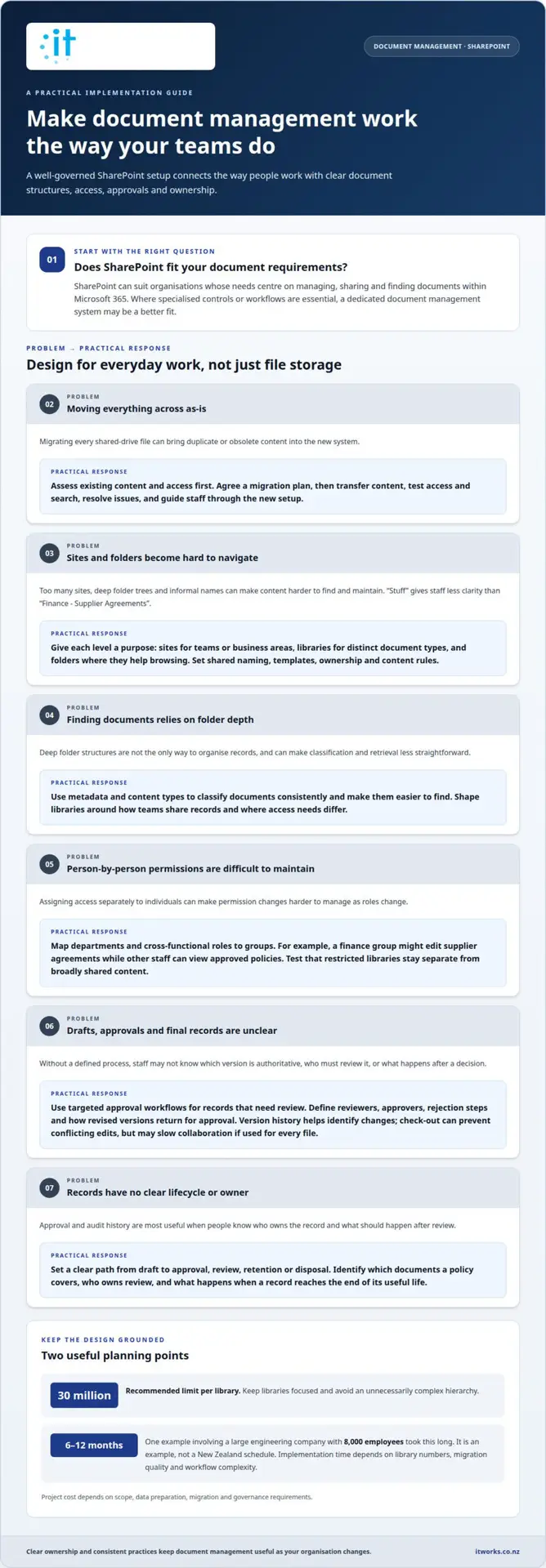
A dedicated DMS isn’t automatically the better choice. A SharePoint implementation for document management can suit organisations whose needs centre on managing, sharing and finding documents within Microsoft 365. Where specialised controls or workflows are essential, a dedicated system may be a better fit.
It’s understandable to want more than a place to store files. Staff need to know which version is current, who can access it and how documents move through review and approval. SharePoint can support these needs when it’s designed around how your organisation works.
This guide explains how to assess SharePoint against a dedicated document management system (DMS), then how libraries, metadata, approvals, permissions, storage and search contribute to a well-governed setup. It also explains why clear ownership and consistent practices matter after implementation, so document management stays useful as your organisation changes.
Key Takeaways
- Assess whether SharePoint’s document controls suit your organisation’s processes, or whether specialised requirements point to a dedicated DMS.
- Shape sites and libraries around how teams work, with consistent naming and clear ownership to keep content organised.
- Use metadata and content types to make documents easier to classify and find without relying on deep folder structures.
- Design approval workflows for records that need review, and set clear retention and archiving practices for business-critical documents.
- Manage permissions through groups and review access as roles change, keeping information available to the right people.
Implementing document management across existing libraries
A SharePoint implementation for document management should start with how teams use existing content, not with copying every shared drive. The design should connect sites, libraries, permissions and ownership to everyday work.
Implementation time depends on library numbers, migration quality and workflow complexity. One example involving a large engineering company with 8,000 employees took 6-12 months, but that project does not set a New Zealand schedule. Cost depends on project scope, data preparation, migration and governance requirements.
A SharePoint implementation for document management typically starts by assessing existing content and access. The project team then designs the site and library structure, agrees naming and permission standards, pilots the approach and plans the migration. After transferring content, they test access and search, resolve issues and guide staff through the new setup.
Common risks include migrating duplicate or obsolete files, creating too many sites, relying on deep folder trees and assigning permissions person by person. Clear ownership and an agreed migration plan help prevent these problems from being carried into the new system.
SharePoint site architecture and library design
Site architecture describes how SharePoint sites and libraries are arranged across an organisation, while library design organises documents within each site. For example, a project team might use one site with separate libraries for plans, approvals and final records. This keeps related work together while giving teams clear places to collaborate. The design should reflect how teams share records and where access needs differ.
Standardising sites and document libraries
Standardisation applies shared conventions to sites and libraries, including names, templates, ownership and content rules. A name such as “Finance – Supplier Agreements” is clearer than an informal label such as “Stuff”. A professional establishes reusable patterns while allowing justified differences between teams. Consistency helps staff recognise where documents belong and gives administrators a manageable structure to maintain.
Department permissions across libraries
Department permissions determine which groups can view or edit information in each library. For example, a finance group might edit supplier agreements while other staff can view approved policies. Group-based access is easier to maintain than permissions assigned separately to each person. A professional maps departments and cross-functional roles to the required access, then tests that restricted libraries remain separate from broadly shared content.
Organising sites, libraries and folders
SharePoint content can be organised into site collections, sites and libraries, with folders and subfolders within libraries. Each level should have a clear purpose: sites for teams or business areas, libraries for distinct document types, and folders where they aid browsing. Keep libraries focused and within the recommended limit of 30 million items per library. This avoids an unnecessarily complex hierarchy and supports clearer management.
Approval processes and business-critical records
Business-critical records need a clear path from draft to approval, then review, retention or disposal. In SharePoint, version history and targeted workflows can make that path visible.
Content approval and audit history
Content approval controls when a document becomes available as an approved version, while audit features provide visibility into user actions and document access. Together, they help teams distinguish working drafts from authorised records and understand how documents have been handled.
SharePoint version history records document changes, helping staff restore an earlier version or identify the latest copy. For example, a policy owner can review changes before publishing an updated procedure. Where a library uses check-out, a user reserves a document while editing. This can help prevent conflicting changes, but may slow collaboration if applied to every file.
SharePoint Server 2016 includes document management policies for auditing, retention or disposal, and protecting important content. Those controls are relevant when a record needs regular review, archiving after a project, or retention for contractual reasons. The policy should identify which documents it covers, who owns review, and what happens when a record reaches the end of its useful life.
An audit history is most useful when it supports a defined process. Records of access or approval can help explain who handled a document and when, while version history shows how its content changed. Neither replaces clear ownership: someone in a named role still needs to decide which version is authoritative and when it can be published.
Approval workflows and automation
An approval workflow routes a document to the people responsible for review and records the outcome. SharePoint can work with Power Automate to create approval workflows, helping replace email-based approvals while retaining an audit trail of the process.
For example, a supplier agreement might move from its author to a manager, then to an authorised approver. The workflow can clarify the next action and keep the decision connected to the document. Define who reviews and approves, what happens after rejection, and how a revised version returns for approval.
Automate repeatable processes that benefit from clear routing, such as policies or standard contracts. Avoid building a workflow for every file. A simple reference document may need no formal approval, while a business-critical record may need named reviewers and a recorded decision. Over-automation adds steps that staff must understand and maintain.
Before configuring a workflow, a professional maps the existing approval process, including hand-offs, exceptions and record ownership. The design can then reflect how decisions are made rather than reproducing informal email habits. Workflow automation planning can help connect document approvals with practical business processes.
Metadata schemas, managed metadata and content types
Metadata gives documents consistent labels, so staff can classify and retrieve them without relying solely on folders. A planned schema also supports governance as content moves across Microsoft 365.
Metadata schemas and managed metadata
A metadata schema defines which information a document should carry, such as department, project, document type or review date. These fields let people filter libraries using meaningful details instead of guessing where a file is stored.
A few well-chosen fields can provide a practical starting point. For example, a project record might use project name, customer, document type and review date. Managed metadata and term stores help keep shared terms consistent, so teams don’t label the same department or document in different ways.
During design, map each field to a clear business purpose. A field nobody uses adds effort without improving discovery. Required fields can support consistent classification, while optional fields suit details that apply only to certain records. The schema should reflect real documents and the language teams use to describe them.
Content types and document discovery
A content type groups a document’s metadata, template and related workflow requirements. It matters because the same type of record can be classified consistently across libraries, even when teams need to view it in different ways.
For example, a supplier agreement content type could define the document type and supplier fields, along with an appropriate template. Staff can then filter for agreements by supplier or review date instead of opening folders one by one. Unlike a folder hierarchy, content types let information be organised and displayed in multiple ways.
SharePoint content types can also standardise how documents are created. Identify recurring records, map their required fields and templates, then apply those definitions in the right locations. This makes search and filtering more useful while keeping each library aligned with its purpose.
Microsoft 365 Copilot makes content governance relevant to AI use. Clear metadata can help describe what a document is, who owns it and when it needs review. Before introducing AI tools, organisations benefit from understanding which content is current, appropriately classified and governed. Reliable information beneath business processes also supports workflows and Power Apps solutions.
Metadata can travel with a document as it moves between locations, provided the destination supports the relevant fields and terms. For example, a project file moving into an archive may retain its project name and document type, while gaining an archive or review classification. A professional maps source fields to destination fields and resolves inconsistent values before migration.
Good governance also defines who maintains shared terms and content types. When a department name changes, an agreed owner can update the managed term consistently. This keeps Microsoft 365 libraries coherent as teams, projects and document needs evolve.
Permissions, information rights management and data loss prevention
SharePoint security works best when information architecture reflects each document’s sensitivity and intended use. Classification, access and lifecycle settings need to work together as part of a structured management approach.
For New Zealand organisations, privacy, data residency and records management considerations depend on the information held, its purpose, and applicable contractual or regulatory requirements. A professional assesses these factors and aligns SharePoint storage locations and handling policies with the organisation’s obligations.
Configure SharePoint by identifying information classes, defining who needs access and applying suitable controls. Document retention and handling rules, test how sensitive content can be shared, and establish how policies will be monitored and reviewed.
Information management policies
An information management policy defines how an organisation classifies, uses, stores and disposes of information. It matters because staff need practical guidance for handling different kinds of content, not just technical settings.
For example, a policy could distinguish public-facing material from confidential financial records and specify approved sharing methods for each. It can also describe who owns a document category, how exceptions are approved and what staff should do if information is sent to the wrong recipient.
SharePoint information architecture gives those rules a structure by linking business functions and information classes to suitable locations. A professional can map where sensitive content is created, which teams need it, and how it should move when its business purpose changes. This makes the management system easier to apply consistently across departments.
Permissions, retention and audit policies
Permissions, retention and audit policies govern access, how long content is kept and how its handling is overseen. Their value comes from matching controls to the information’s sensitivity and business purpose.
Information Rights Management can control how authorised users use document content. Data loss prevention features can help prevent accidental sharing of sensitive information. For example, a policy can guide the handling of a document containing confidential customer details while allowing approved staff to use it for their work.
Retention policies should connect to the document lifecycle. A project record may need different handling during active work than after completion, so the policy should define its owner, review point and eventual disposition. Consistent lifecycle rules also help limit the accumulation of content that no longer serves a business purpose.
A documented security policy should cover access control, data classification, incident response, user training and compliance monitoring. Organisations should protect data in transit and at rest. A professional can test controls using representative scenarios, such as a staff member sharing a sensitive file externally, then refine training and settings where the intended handling is unclear.
Consistent retention and lifecycle policies can help organisations manage content in line with their obligations while reducing unnecessary data growth. Manage SharePoint permissions at group level rather than assigning them to individual users.
Review SharePoint permissions regularly as employees join, leave or move between teams. A SharePoint-based quality management system also needs security measures such as access controls and audit trails. Together, these measures help align access decisions with information handling needs.
Document creation, storage, retrieval, and search
A SharePoint document management system supports the working life of a file, from creation and collaboration through storage and retrieval. Its value depends on connecting those activities to the way teams use Microsoft 365.
Document creation, storage and retrieval
SharePoint provides a shared place for teams to work on documents created in Word or Excel. It integrates with Microsoft Teams, Outlook and OneDrive, helping staff create, edit and share files in a connected Microsoft 365 environment. Multiple people can collaborate on a document without creating separate copies, which makes it easier to keep shared work together.
SharePoint Online storage includes 1 TB per organisation, plus an additional 10 GB per purchased licence. In New Zealand, Microsoft 365 licensing costs depend on the plan and licences assigned. Storage planning should also account for existing files, expected growth, retention needs and the organisation’s approach to archived material.
For example, staff might develop a project brief in Word, work on it together in Teams, then retrieve it from the shared project location when needed. A professional maps these work patterns and configures where active documents belong. That helps staff work from shared locations rather than relying on attachments or files saved only on individual devices.
Search and document discoverability
Search helps staff retrieve documents without knowing the exact folder path. It matters when someone needs a particular record quickly, such as the latest project brief or a customer agreement, but the person who created it is unavailable.
Search effectiveness depends on how people refer to records and what they remember about them. Test realistic searches with staff from different departments, including searches by project, customer or document subject. The results reveal whether users can find the material they need and whether the content structure supports everyday retrieval.
Search also needs a manageable content environment. Removing unnecessary duplicates and applying agreed retention practices can keep results focused on useful material. For instance, separating active project work from completed records helps staff distinguish current working documents from historical information.
Components of a document management system
A SharePoint document management system brings together document creation, storage locations, access controls, collaboration and lifecycle processes. These components help staff manage business information consistently rather than treating each file as an isolated item.
Microsoft 365 connects SharePoint with familiar applications, including Word, Excel and Teams. A professional considers how people create and share documents, how they retrieve content, and how records are managed when active work ends. Storage and retention decisions should support these patterns and the organisation’s information needs.
As content grows, periodic reviews can identify duplicate material, obsolete working files and storage that no longer serves a clear purpose. These reviews keep everyday retrieval practical and give departments a clearer view of which documents support current work.
IT Works
Wellington-based, IT Works helps organisations in Wellington and across New Zealand align technology decisions with business priorities. If you’re assessing SharePoint for document management, IT Works can help clarify your requirements and consider how the platform fits your wider technology environment.
Through Managed IT Services, IT Works provides practical technology management and strategic guidance, helping keep systems aligned with business needs as they evolve.
Talk to IT Works about your SharePoint plans.
Make document management work for what comes next
A SharePoint implementation for document management is most valuable when it can adapt as your organisation’s information needs change. Treat governance as an ongoing business practice, with clear ownership and regular reviews of how document processes support new priorities.
IT Works can help connect those decisions with your wider technology strategy. Its Managed IT Services support ongoing technology management, while Cyber Security and AI & Automation can inform how information is protected and used across your organisation. The right starting point is a conversation about the outcomes your teams need from SharePoint.
A considered approach gives your people a dependable foundation for working with business information.
Frequently Asked Questions
Why Choose SharePoint Over a Dedicated DMS?
SharePoint can suit organisations that want document management connected with their Microsoft 365 environment. A dedicated DMS may be a better fit when essential processes depend on specialised controls, validated workflows or sector-specific features. Compare the systems against the records you manage, approval paths, access requirements and governance needs. The decision is about fit, not simply replacing one platform with another.
How can a provider migrate files and documents into SharePoint safely?
Assess the source locations, identify duplicates and obsolete files, then map documents to their destination libraries. Before migration, document access requirements and metadata mappings, then test representative files in a pilot. A staged transfer helps surface issues early. Reconcile migrated content, test permissions and search, and retain the source material until the new environment has been checked.
How do SharePoint document management features compare with Microsoft 365 alternatives?
SharePoint provides the structured document libraries and governance foundation, while Microsoft Teams gives users a collaborative workspace connected to SharePoint files. OneDrive is suited to individual file storage and sharing, with files able to move into shared workspaces when they become team records. These tools work together rather than serving as direct substitutes. The best design depends on whether content is personal, shared or managed as an organisational record.
How long does a SharePoint implementation take and what does it cost in New Zealand?
Timing varies with the number of libraries, migration quality and workflow complexity. A large engineering implementation took 6-12 months, but that is not a New Zealand schedule; cost depends on project scope, data preparation, migration and governance requirements.