
The fastest way to create a difficult workflow to manage is to automate a process that isn’t clear. Automating business workflows with Power Automate can reduce repeated steps across email, forms and shared information, but useful results start with understanding how the work should flow.
Before getting started, consider which task is suitable for automation, how you’ll manage access and errors, and who will own the workflow. Most importantly, ask whether the flow will solve the problem or simply move it somewhere else.
This guide explains how to choose a first workflow with a clear business benefit, then plan, build and test it. You’ll learn what to consider when connecting Microsoft 365 tools, managing access and maintaining a flow, and when to improve a process before automating it. With a purposeful approach, Power Automate can support more consistent everyday work without adding unnecessary complexity. For workflows that affect important business systems, connect the design to your wider technology strategy from the start.
Key Takeaways
- Map the real process before deciding whether to keep it manual, improve it or automate a stable part.
- Understand how triggers, conditions and actions can move a staff request from submission to approval.
- Plan, build, test and document a workflow before relying on it.
- Make automating business workflows with Power Automate manageable by assigning an owner and reviewing the flow when processes or responsibilities change.
- Assess process stability, exceptions, data access and ownership when choosing a suitable first workflow.
Why automate business workflows with Power Automate? Start with the work, not the tool
A request arrives by email, someone copies its details into a spreadsheet, then follows up with the right manager. Each hand-off takes only a few minutes, but repeated across a team, these steps can delay work and create inconsistent records. The value of automating business workflows with Power Automate comes from improving that process, not adding a flow simply because the tool is available.
A workflow is a repeatable sequence of steps that moves information or work from a starting point to an outcome. Automation applies agreed rules and connected actions to carry out some of those steps, such as sending a request to an approver and recording the decision.
Think of automation as support for staff, not a substitute for sound judgement. A flow can handle predictable tasks consistently, while people remain responsible for decisions that need context, discretion or a conversation. Microsoft’s Power Automate overview provides general background on the platform. The useful starting point for a business is the process it needs to improve.
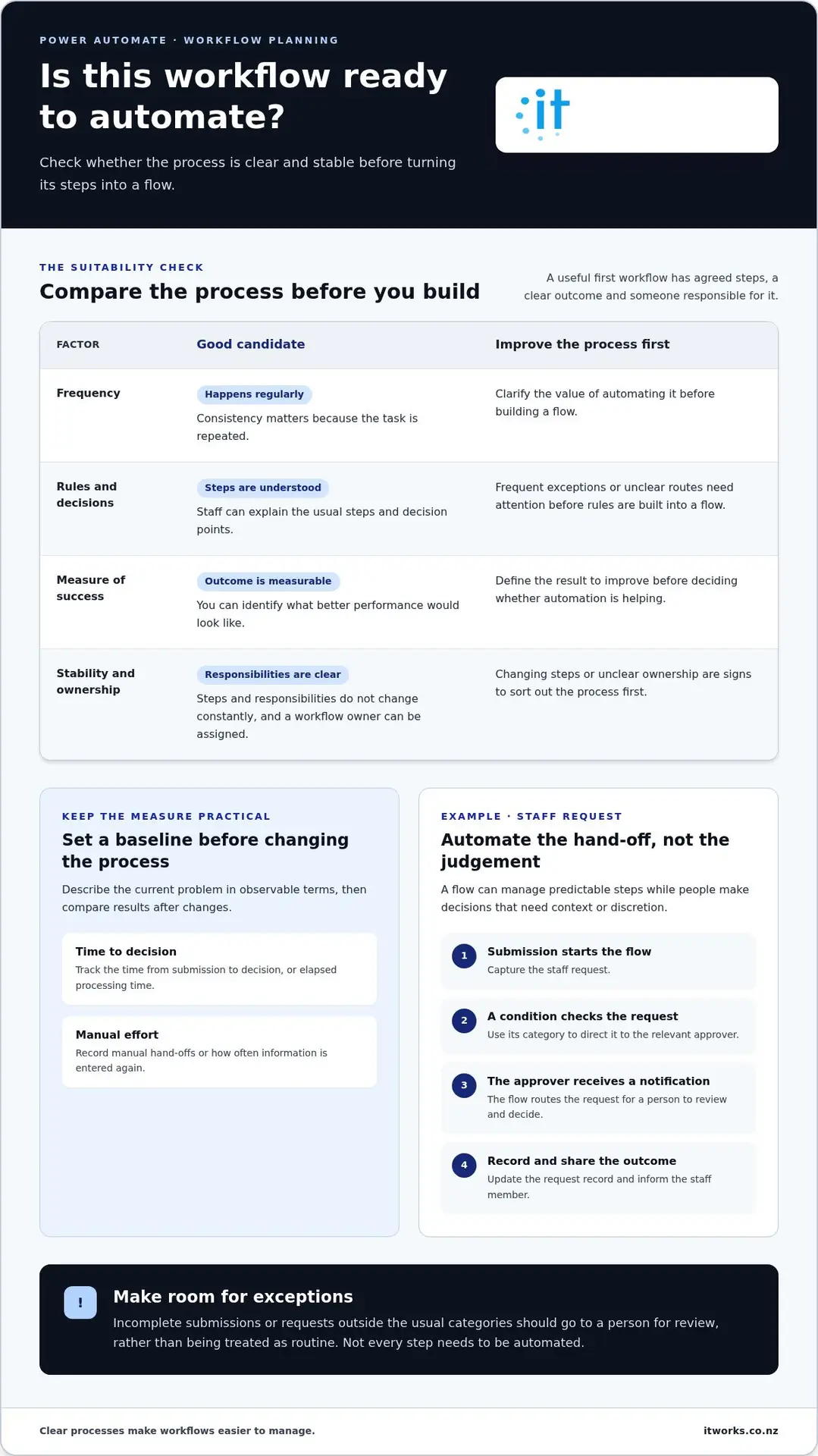
A practical first suitability test is to ask whether a process is:
- Frequent: it happens regularly enough for consistency to matter.
- Rule-based: staff can describe the usual steps and decision points.
- Measurable: you can identify what better performance would look like.
- Stable: the steps and responsibilities don’t change constantly.
Which business workflows are good candidates for automation?
Look for repeated work with clear inputs and predictable outcomes. For example, a staff request could be routed to the relevant approver, who receives a notification and records a decision. This may suit automation if requests follow a consistent route. Frequent exceptions, unclear ownership or rules that change often are signs to improve the process first, rather than encode uncertainty in a flow.
Not every step needs to be automated. A useful first flow might handle the hand-off and notification, while leaving unusual requests for a person to review. This keeps the process practical and gives staff a clear route for cases that don’t fit the usual pattern.
What should a workflow improve before you build it?
Describe the current problem in observable terms: requests wait in an inbox before anyone assigns them, details are entered twice, or approvers don’t know when action is needed. Then set a baseline, such as the time from submission to decision or the number of manual hand-offs. A clear measure lets the owner compare results after making changes and assess whether the flow is improving the process.
Choose a measure that reflects the outcome staff and managers care about. If the aim is fewer delays, track elapsed processing time. If the issue is duplicated effort, record how often information is re-entered. This gives the team a sound basis for deciding what to change and whether automation is helping.
How Power Automate workflows work: triggers, actions and decisions
A Power Automate flow follows a sequence: something starts it, conditions guide what happens next, and actions move the work towards an outcome. For a staff request, that could mean capturing a submission, checking its category, notifying the right approver and recording the decision. The exact connections and behaviour depend on the services involved and how they’re configured.
Trigger: the event or schedule that starts a flow.
Action: a task the flow performs, such as sending a notification or updating a record.
How do triggers, conditions and actions fit together?
Imagine a staff member submits a request. The submission is the trigger. A condition can check the request type and direct it to the appropriate approver. Actions might then notify that person, update the request record after a decision, and inform the staff member of the outcome.
The sequence should reflect the real decision process. If a request needs a manager’s judgement, the flow can present the details and route the response rather than decide on the manager’s behalf. Clear exception paths matter too: incomplete submissions or requests outside the usual categories should be sent for review, not silently treated as routine.
How does Power Automate connect with Microsoft 365?
Where the relevant services and permissions allow, a flow can connect steps across Microsoft 365, helping information move between existing work processes instead of being copied manually. For example, a request may begin in one Microsoft 365 tool, trigger an approval notification, then lead to a record update. Microsoft’s Power Automate official page outlines the platform. Available connections depend on the apps, configuration and licensing in use.
That flexibility makes it important to consider how information is accessed and where the completed record belongs. A well-designed flow should make clear which service holds the authoritative version, who can act on a request, and what happens if an action can’t be completed. These details help staff understand the process and make it easier to manage over time.
Power Automate works best as part of a considered Microsoft 365 environment. Decisions about access, ownership and service management can affect whether a flow remains useful as teams and processes change. The Microsoft 365 management guidance explores how wider management choices support consistent use of Microsoft 365.
When automating business workflows with Power Automate, map the journey before building: identify what starts the flow, which decisions shape its path, what actions follow and how staff will know the outcome. IT Works helps organisations consider AI and automation as part of their wider technology priorities. Its AI & Automation guidance can support a practical discussion.
When is Power Automate the right choice for a business workflow?
A useful workflow choice isn’t simply “automate or don’t”. A process may be working well enough to remain manual, need improvement before technology is involved, or have a stable section that Power Automate can handle. The right decision depends on the work, the information involved and who will look after the process.
Use the following comparison as a starting point. Consider how predictable the process is, how often exceptions arise, whether the required information can be accessed appropriately, and who owns the outcome.
Keep it manual: The task is infrequent, requires frequent judgement or depends on context that is difficult to express as consistent rules. A person can manage it directly, with clear guidance and a record of the result.
Improve it first: The steps, decision rights or information are inconsistent. Clarify the process and responsibilities before deciding whether technology has a useful role.
Automate a stable part: The routine steps are repeatable, inputs are clear, and exceptions can be directed to a person. Automating a defined part can reduce repetitive handling while leaving decisions that need context with staff.
When should a team improve a process before automating it?
Pause if staff follow different approval rules, enter the same information into separate records or aren’t sure who should handle the next step. Agree on an owner, a consistent outcome and the circumstances that need human review. Otherwise, automation can make an inefficient process run more consistently without making it more useful.
This doesn’t mean every variation must disappear. Distinguish a genuine exception, such as a decision requiring specialist judgement, from a workaround that exists because the process is unclear. Address the underlying confusion, then assess whether a predictable part is suitable for a flow.
What should you compare before choosing an automation approach?
Assess the potential benefit alongside the effort needed to maintain the flow’s rules and connections. Connector fit and licensing can depend on the services and setup involved, so check Microsoft’s current information before settling on a design. A focused workflow decision is also different from setting an organisation-wide direction for automation.
- Process stability: Are the usual steps and rules consistent, or do they change regularly?
- Exceptions: How often must staff step in, interpret context or resolve an unusual case?
- Data access: Can the flow use the required information in the relevant services, with suitable access and configuration?
- Ownership: Is someone responsible for the process, its outcomes and any future changes?
If routine steps are stable, exceptions are manageable and ownership is clear, a focused flow may be worth exploring. If the work crosses teams or systems, or raises wider questions about governance and priorities, consider the broader picture before building. IT Works’ AI automation guidance for New Zealand organisations discusses how automation choices can fit within a wider business approach.
How to plan, build and test a Power Automate workflow
A reliable flow begins with an agreed process, not a series of technical steps. For a staff request, the aim might be to move each submission to the right approver, notify the staff member of the decision and update the record. Use this sequence to plan and test the workflow before relying on it.
- Map the process. Note who submits the request, what information is needed, where it is recorded and who takes each next step. Mark approval decisions, delays and exceptions so the flow reflects the way the process should work.
- Define the outcome. Be specific about what a successful request looks like. For example, the approver receives the relevant details, the decision is recorded and the staff member is notified. Choose a measure for reviewing the pilot, such as time from submission to decision.
- Design the flow. Set out what starts the workflow, which conditions determine its route and what actions follow. Decide what should happen if information is missing or a request falls outside the usual approval path. Keep human review where judgement is needed.
- Test the flow. Check the routine path, incomplete information and a foreseeable exception. Confirm that the right person receives the notification, the decision is captured accurately and the record reflects the outcome. Adjust the design if a test reveals ambiguity or an unexpected hand-off.
- Document ownership. Record the flow’s purpose, owner, connected services and process steps. Explain how to recognise and handle a failed run, when staff need to act manually, and who should review process changes.
How do you map a process before creating a flow?
Walk through a request from submission to completion with the people who do the work. Capture the information required, who approves it, where the record lives and what happens when a request is incomplete. Agree on the intended outcome and a practical measure before building. This gives the team a clear reference for the design and pilot review.
How should you test and document a new flow?
A useful workflow test specifies the expected input, the action the flow should take and the result staff should see. For a staff request, test a complete submission, a missing detail and a request needing manual review. Make sure authorised staff understand the route and know when to step in, rather than assuming the flow has handled every case.
Start with a controlled pilot and review the chosen measure alongside staff feedback. If the workflow saves effort but creates confusion about ownership or exceptions, refine the process before expanding its use. This keeps automating business workflows with Power Automate connected to a clear operational outcome.
How to manage Power Automate workflows as your organisation grows
A workflow that works well today still needs attention as the business changes. New approval steps, changes to staff responsibilities or updates to a connected service can affect whether a flow continues to support the intended process. Ongoing ownership helps keep automation useful, understandable and aligned with how your organisation works.
Give each flow a clear purpose, a business owner and an agreed approach to review. The owner confirms that the process remains accurate and useful. They don’t need to manage every technical detail, but should know who can review changes and how staff can raise issues.
Who should own a business workflow after launch?
Assign a business process owner who understands the intended outcome and can confirm whether the flow still reflects current practice. Clarify who handles exceptions and who reviews changes to connected services or staff responsibilities. Keep supporting notes in plain language so relevant staff can understand the process without relying on the original builder.
Practical documentation can include:
- Purpose: what the workflow is meant to improve and which process it supports.
- Ownership: who confirms process changes and who responds when staff need help.
- Access: which roles need to use or manage the workflow, reviewed as responsibilities change.
- Exceptions: when staff should take manual action and how to record the outcome.
Access should match work responsibilities. If someone changes roles or no longer needs to manage the process, review their access as part of the organisation’s normal account and responsibility changes. Clear ownership and appropriate access make the workflow easier to oversee as teams grow.
How can teams review workflow outcomes over time?
After a suitable review period, compare results with the baseline and measure agreed before the flow was introduced. For example, if the aim was to reduce the time between a request and a decision, compare that measure with the original process. Review failed runs and manually corrected outcomes too. They can reveal unclear instructions, changing needs or steps that should be redesigned.
Reassess a workflow when its process steps, connected services or owners change. Consider whether staff can still access the information they need, whether exceptions are being handled as intended, and whether the flow supports the wider technology environment. These checks help maintain dependable operations and give the business a clearer view of how its processes fit together.
As automation becomes part of a broader technology environment, organisations may need coordinated support across systems, access and ongoing service management. IT Works’ managed IT services for Wellington organisations connect operational support with wider technology needs.
For automating business workflows with Power Automate, a practical next step is to identify an owner and schedule a review against the outcome the flow was designed to achieve.
Make your next workflow decision purposeful
As you consider automating business workflows with Power Automate, choose one process where a clearer, more consistent approach would make a practical difference. Use what you learn to guide future decisions, including whether other processes are ready for automation or need a different kind of improvement.
Good automation should fit the way your organisation operates and support its wider priorities. IT Works is a Wellington-based New Zealand technology partner, combining Technology Strategy & Advisory with practical project and operational support. That perspective can help connect individual workflow decisions with the systems and responsibilities around them.
A thoughtful first step can create a strong foundation for more consistent work. Keep the focus on useful outcomes, clear ownership and processes your people can rely on.
Frequently Asked Questions
Does Power Automate come with Microsoft 365?
Not necessarily with the same capabilities for every workflow. What’s available depends on your organisation’s Microsoft 365 plan, configuration and the workflow’s connections. First map the intended process, including any external services or specialised functions. Then check Microsoft’s current licensing information for the applicable requirements before designing around a feature that isn’t part of your setup.
Can Power Automate connect to apps outside Microsoft 365?
It can connect to services outside Microsoft 365, depending on available connectors, configuration and applicable licensing. Before building, identify what information needs to move between systems, who owns it and which staff need access. For example, moving a customer record between business applications may involve different permission settings and data owners. Clarifying these requirements early helps shape a workable design.
Do you need coding experience to use Power Automate?
No, coding isn’t necessary for every workflow. Straightforward flows can be planned as visual steps, but the process logic still needs to be clear. A simple notification may need little technical input, while complex rules, integrations or exceptions can call for specialist guidance. A low-code interface doesn’t remove the need to test the result, document who owns it and plan how it will be maintained.
How can you prevent a Power Automate workflow from sending the wrong approval?
Define the approval rules and authorised decision-makers before designing the flow. Specify required details, such as the request category or the manager responsible, and decide how unusual cases should be handled. Test scenarios with different request categories or incomplete details, then confirm notifications reach the intended roles. Review and refine the workflow as responsibilities or approval arrangements change.
What should happen when a Power Automate flow fails?
Document a response before relying on the workflow. Identify who will notice a failed run, who can investigate it and how staff should continue the process manually if needed. For a time-sensitive approval, the documented fallback might direct staff to the established manual route. Record the failure and its cause, then assess whether the flow or its supporting process needs adjustment.
How do you know whether a Power Automate workflow is worth keeping?
Compare its results with the baseline and measure agreed before it was introduced. For automating business workflows with Power Automate, look beyond completed runs: consider whether the flow reduces avoidable hand-offs, improves consistency and creates manageable exceptions. Ask staff who use the process what has changed. If the workflow no longer supports its intended outcome, revise the process or flow instead of keeping it by default.