
More Microsoft Teams features won’t automatically improve how work gets done. Optimising Microsoft Teams for business collaboration means bringing conversations, files, apps, meetings and everyday workflows together in a structure that fits your organisation.
Information can become scattered when people work across teams, locations or organisational boundaries. Teams can connect that work through shared channels, collaborative files, mobile access, chat and meetings, but the value comes from making these tools work together clearly and consistently.
This article explains how to shape Teams around practical business needs, from organising channels and sharing documents to supporting mobile work and coordinating tasks. You’ll learn how meetings, chat and connected apps can support smoother workflows, and why thoughtful access and setup matter. The goal is a more connected workplace where people can find what they need, work together on shared information and keep decisions moving.
Key Takeaways
- Set up channels around shared work so conversations, files and decisions are easier to follow across teams.
- Bring relevant files and business apps into Teams to keep collaboration connected to everyday tasks.
- Use mobile access to help people stay involved in chats, calls, files and tasks when they’re away from their desks.
- Make shared document editing and co-authoring part of the workflow to keep updates together and reduce version confusion.
- Coordinate meetings, chat and task management in Teams to give work clearer context and momentum.
Collaboration across organisational boundaries
Teams can connect people across departments, locations and partner organisations when workspaces and access reflect real business needs. A practical approach to optimising Microsoft Teams for business collaboration starts by deciding who needs to work together and what they need to share.
Requirements for reliable performance
Reliable Teams use depends on a stable internet connection, suitable devices and a network that supports calls and meetings. These foundations matter: poor audio or delayed screen sharing can make cross-team decisions harder.
For video meetings, use a dependable connection, a working microphone and a device that runs Teams smoothly. Keep the app and device software up to date, and limit competing network activity during important calls. While a headset can help reduce background noise in an individual workspace, outfitting dedicated spaces often relies on specialist AV and meeting room design from providers such as Averett Pte. Ltd. to ensure seamless hybrid collaboration.
Teams combines Microsoft 365 collaboration features with chat, calls and meetings. Slack focuses on workplace messaging, while Zoom is commonly used for video meetings. The best fit depends on whether an organisation values connected Microsoft 365 work, messaging, video or a mix of these needs.
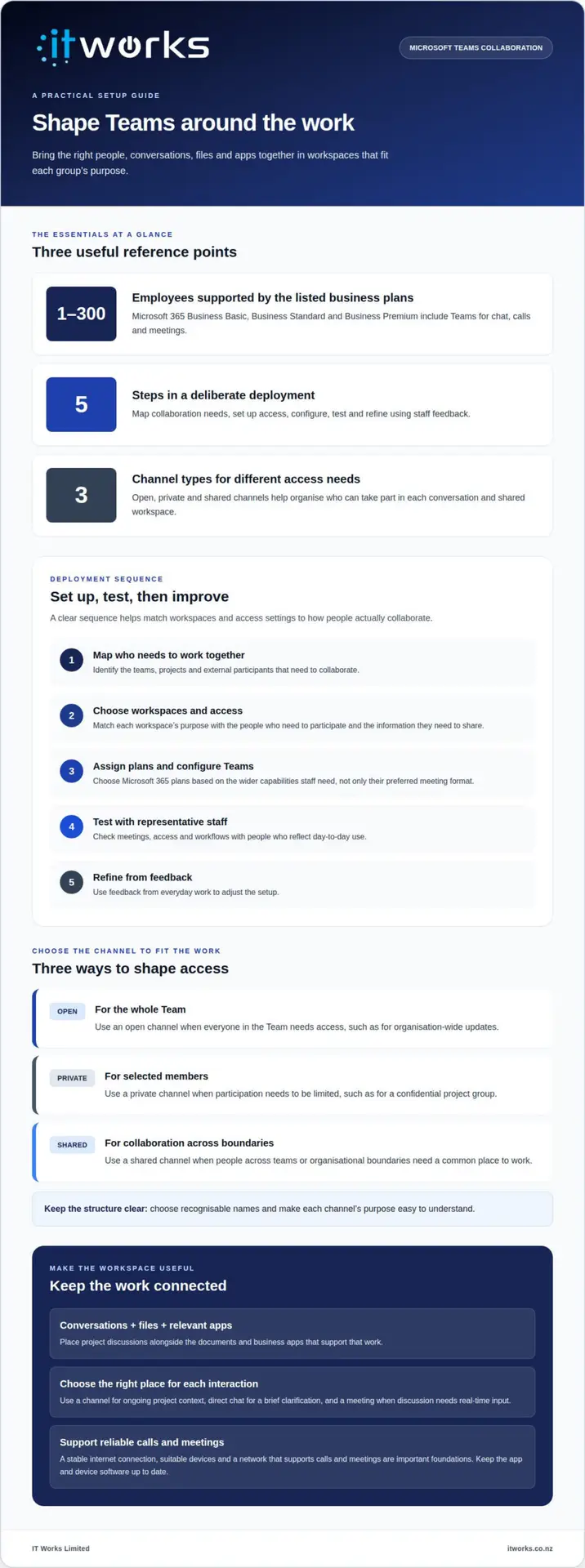
Microsoft 365 Business Basic, Business Standard and Business Premium include Teams for chat, calls and meetings. These business plans support organisations with 1-300 employees. Select a plan based on the wider Microsoft 365 capabilities staff need, not just the meeting format they prefer.
For example, a finance team and an operations group can use a shared project workspace to coordinate a process change. Set membership to include the people involved, and keep sensitive discussions in a suitably restricted space. This gives participants useful context without making every conversation visible across the organisation.
A deployment should follow a deliberate sequence:
- Map the teams, projects and external participants that need to collaborate.
- Choose workspaces and access settings to suit each group’s purpose.
- Assign the relevant Microsoft 365 plans and configure Teams.
- Test meetings, access and workflows with representative staff.
- Refine the setup using feedback from day-to-day use.
Adoption, training and collaboration habits
Teams adoption improves when staff know where specific work belongs and how to use the relevant features. Training works best with realistic examples, such as joining a project meeting, finding its decisions or sharing an update with the right group.
Agree on practical habits across departments. Use a channel for ongoing project context, direct chat for a brief clarification and a meeting when discussion needs real-time input. Clear names help people recognise where new work belongs, while team leads can reinforce the same approach across projects.
For organisations optimising Microsoft Teams for business collaboration, role-based guidance helps workspace owners manage membership and staff follow shared practices. Demonstrate common tasks, provide concise instructions and gather feedback on recurring points of confusion. Update the guidance as teams and working patterns change.
Files and business apps in Teams and channels
Teams channels bring conversations, files and business apps into workspaces organised around people or topics. A clear structure helps colleagues find relevant context and collaborate across organisational boundaries.
Organising collaboration with channels
A channel is a dedicated space for conversations and shared work within a Team. Channels keep project discussions and relevant files together instead of scattering them across unrelated chats.
Choose an open channel when the whole Team needs access, such as for organisation-wide updates. Use a private channel for work limited to selected members, such as a confidential project group. Shared channels can support collaboration across boundaries, with access suited to the people involved.
Choose names that make each channel’s purpose easy to recognise. For example, a project Team might have channels for planning, delivery and client updates. Keep the structure clear so staff can decide where a new conversation belongs.
Files and business apps
Teams supports access to files and business apps within Teams and channels. This lets people use relevant resources alongside the conversations connected to them.
For example, a delivery team can keep project discussions alongside working documents and a related business app. Colleagues can follow the context, locate materials and continue the work in the same workspace.
Decide which files and apps belong in each channel based on the work underway. A project channel should contain resources that support that project, not become a catch-all for unrelated material. Clear placement makes shared work easier to follow.
Using shared spaces across teams
When work crosses departments, a shared channel can give participants a common place to collaborate. For example, finance and operations colleagues working on a process change can discuss it in one shared space.
Keep channel membership aligned with project participants. Use a wider channel when updates benefit the whole Team, and a private channel when participation needs to be limited to selected members. This helps people access relevant discussions without crowding every workspace.
Consistent channel names and purposes also help staff move between Teams. They can recognise where a topic belongs and follow its history without relying only on direct messages.
Message translation in chats and channels
Teams supports inline translation of messages in chats and channels. This can help colleagues understand messages when participants communicate in different languages.
For example, a staff member can translate a message in a cross-border project conversation, then respond in the same chat or channel. Keeping the exchange in its original workspace preserves the surrounding discussion and project context.
Translation can support communication, but clear writing still matters. Use direct wording, keep instructions focused and identify the decision or action required. These habits make messages easier for colleagues to understand and respond to.
Mobile collaboration and access to files
Microsoft Teams mobile apps let people chat, join video calls, access files and manage tasks from a phone or tablet. This keeps work within reach when staff are travelling, visiting a site or away from their usual desk.
Mobile access is most useful when it serves a clear work need. A project lead travelling between sites might check a shared file before a meeting, while a team member can respond to a channel update from a tablet. Teams keeps these interactions connected to workspaces and conversations.
A small screen suits quick actions, but not every task. Staff can review a document or post an update from a phone, then use a larger device for detailed editing. Teams meetings also let people join by video or audio when they can’t attend from their desk.
Plan mobile use around the work people need to do. Identify the files and tasks staff need while travelling, then make sure the relevant Teams spaces are easy to find. Clear channel names and purposeful notifications help people focus on useful updates instead of scanning every conversation.
Identity and access management
Identity and access management controls who can sign in and what information they can reach. In Teams, appropriate access helps staff collaborate while limiting workspaces to relevant participants.
For example, a project manager can align channel membership with the project team, while a finance workspace remains available to its intended colleagues. Review access when people change roles or leave a project, and remove permissions they no longer need. This keeps membership aligned with current responsibilities.
Mobile devices make access decisions especially important because staff can open work outside the office. Set clear expectations for using work accounts, protecting devices and reporting misplaced equipment. Keep shared files in the appropriate Team or channel rather than sending copies through personal accounts or unapproved messaging apps.
Reducing common collaboration risks
Common Teams risks include sharing a file with the wrong audience, leaving outdated members in a workspace and missing important information in busy chats. Reduce these risks by assigning access deliberately, reviewing membership as work changes and placing key decisions in the relevant channel.
Use a practical access routine: confirm who needs the workspace, match permissions to their role and review membership when project responsibilities change. For example, a temporary contributor should have access suited to their task, while ongoing project decisions remain visible to the core team.
Training supports these safeguards. Show staff how to distinguish a direct chat from a channel conversation, find files in the right workspace and check recipients before sharing. A short example based on a real project helps people apply the guidance in their daily Teams activity.
For organisations managing Microsoft 365 access and connected devices, consistent administration helps align mobile collaboration with workplace requirements. The focus is practical: make essential work accessible, keep permissions relevant and give staff clear habits for using Teams wherever they work.
Team sites, OneDrive storage, and coauthoring
Microsoft Teams brings shared documents and conversations into a connected working environment. Organised storage and live editing help colleagues work from the same information.
Team sites and OneDrive storage
Team sites provide a shared home for work, while OneDrive supports files stored by individuals. Choosing the right location helps colleagues find documents and understand who they’re for.
For example, a project proposal used by several departments belongs in shared project storage. A personal draft can stay in OneDrive until it’s ready for wider input. Moving the approved document into the shared workspace gives the team a clear reference point.
Microsoft Teams can bring messages, documents and schedules together, reducing time spent searching in separate places. Agree where working files, final documents and personal drafts belong. This simple distinction helps staff avoid creating competing copies in chats, email and shared folders.
Real-time document coauthoring
Real-time coauthoring lets colleagues edit a shared document at the same time. Microsoft Teams supports coauthoring across shared documents, helping teams contribute without passing separate copies between people.
For instance, a manager can refine a proposal while a colleague adds project details. Changes sync automatically, and version control helps keep edits together. The shared document becomes a more useful source for current work than multiple attachments with unclear status.
Coauthoring works best when the document’s purpose and ownership are clear. One person might be responsible for a project plan’s structure, while contributors update relevant sections. Agreeing how to handle edits and decisions reduces confusion when several people work in the same file.
Use the live document for collaboration, then record significant decisions where project members can find them. For example, add agreed milestones to the plan instead of leaving them only in a meeting chat. This keeps the document connected to the work it supports.
Shared storage also needs a practical naming and filing approach. Include a recognisable project name and document purpose so staff can distinguish a current plan from a draft. Keep completed material separate from active work to make the next step easier to identify.
Review how files are used as projects change. If colleagues repeatedly ask which version is current, move the work into one shared document and direct contributors there. If a file is personal working material, keep it separate until it needs team input.
Teams, OneDrive and shared documents work best when their roles are clear. Use personal storage for individual work, shared team spaces for collective documents and coauthoring when people need to contribute together. This structure connects information to its owners, purpose and next action.
Teams meetings, chat, apps, and workflows
Microsoft Teams brings communication and day-to-day coordination into one workspace. Choosing the right feature for each task helps people keep discussions, meetings and actions connected.
Chat and calling
Teams chat suits quick exchanges, while audio and video calls work well for conversations that need more interaction. Choosing the right format helps colleagues share context without turning every update into a meeting.
Use a direct chat for a quick clarification, and a channel conversation when a project group needs the context. Teams Phone supports making and receiving calls and setting up voicemail. This can connect calling with everyday Teams communication, where the organisation’s Microsoft 365 setup includes the required capabilities.
Microsoft 365 Business Basic, Business Standard and Business Premium include Teams for chat, calls and meetings. Plan selection should match the organisation’s broader needs, not just the preferred way to communicate.
Meetings and webinars
Teams meetings support video or audio calls, screen sharing and webinars. These options let organisations choose a format that suits the purpose, from a working discussion to a larger online presentation.
For a project meeting, share the relevant screen when reviewing a proposal or presentation. Business Standard and Business Premium include webinar hosting with attendee registration and reporting. Registration can help organise participation, while reporting helps hosts review the event afterwards.
Before a meeting, share its purpose and any relevant materials. During the session, use screen sharing to focus the discussion. Afterwards, record decisions and actions in the appropriate workspace so colleagues who were absent can follow progress.
Apps and workflows
Apps and workflows connect everyday tasks with the conversations where people coordinate them. Microsoft Planner integrates with Teams, giving teams a place to manage day-to-day work alongside collaboration.
For example, a project group can use Planner to organise tasks, then discuss progress in its Teams workspace. Use clear task names, assign responsibility and update progress as work moves forward. This shared view helps colleagues see what needs attention and how tasks relate.
Choose apps based on a real workflow need. A useful app supports a defined activity instead of adding another place staff have to monitor. Connect the app to the relevant team conversation and explain how it fits into existing work.
Collaboration practices for meetings and files
Good collaboration practices make meetings, chat and file sharing easier to follow. Use a meeting when discussion or screen sharing will help, chat for focused exchanges and shared files for ongoing work.
Before a Teams meeting, set an agenda and identify the document under discussion. During the call, capture decisions and actions. Afterwards, share the outcome in the relevant team space rather than leaving important context only in the meeting conversation.
When sharing files, provide access to the working document instead of sending separate copies. This helps colleagues find the right material and contribute in one place. Clear meeting purposes, focused chats and deliberate file sharing make follow-up more straightforward.
IT Works: Microsoft 365 Management
IT Works helps organisations manage Microsoft 365 so Teams supports their working practices and business priorities. Turn to the team when channel structures, access settings or connected workflows need a more consistent approach.
Microsoft 365 Management can bring administration and collaboration needs into a considered plan. This may include aligning Teams settings with how staff share information, coordinating the tools people use, and keeping the environment suited to changing organisational needs. Where collaboration depends on wider technology support, Managed IT Services can provide a broader operational context.
A clear review can help identify practical improvements without adding unnecessary complexity. Contact IT Works to discuss how Microsoft 365 Management could support the way your organisation works.
Make collaboration work for what’s next
As your organisation’s priorities change, Teams should keep pace with the way people need to work. A useful next step is to identify where collaboration still feels fragmented, then decide which changes would make the greatest practical difference. That might mean reviewing how people share information, how new staff learn established habits, or how Microsoft 365 supports work across teams.
Optimising Microsoft Teams for business collaboration is part of a wider technology approach. IT Works can connect Microsoft 365 Management with Managed IT Services, Cyber Security, and AI & Automation, where those areas support your organisation’s goals. The focus is on aligning technology with the work your people need to do.
Talk to IT Works about how Microsoft Teams can better support your organisation’s priorities in Wellington.
With a clear direction and practical support, your people can keep building better ways to work together.
Frequently Asked Questions
How should businesses structure Teams, channels, and naming conventions for collaboration?
Structure Teams around enduring functions or time-bound initiatives, then keep channel names predictable and easy to scan. For example, use a consistent pattern such as “Project name | Workstream” and reserve a general channel for organisation-wide notices. Give each Team an owner responsible for membership and regular relevance reviews. Close or archive spaces when work ends, so search results and active workspaces remain useful instead of filling up with abandoned projects.
How do Teams integrate with Microsoft 365, SharePoint, OneDrive, and business apps?
Teams connects with Microsoft 365 so conversations can sit alongside the work they support. SharePoint team sites provide shared spaces for team files, while OneDrive suits an individual’s work files. Teams also supports access to business apps within its workspaces. For example, a project team might keep approved templates in its shared site and use a connected app to track requests, giving members a common view of the work.
How can administrators configure Teams security, privacy, guest access, and compliance?
Set workspace and channel access to match each group’s purpose. Use private channels for selected members or sensitive discussions, and review membership when people change roles or leave projects. Remove permissions they no longer need.