
The most useful Microsoft 365 security controls start with understanding who needs access, not simply adding more restrictions. A practical set of Microsoft 365 security best practices can use user tags to group people by role or access needs, helping a security partner apply suitable controls across accounts and cloud apps.
That matters because email, shared files and connected apps all need protection suited to how your organisation works. User tags can support a consistent approach while helping match access to each person’s responsibilities.
This article explains how a security partner can put those tags to work alongside email protection, multifactor authentication, security baselines and audits. It also covers cloud app security, including how access and sharing controls help protect information across Microsoft 365. The aim is a connected, practical security approach that supports business confidence without making everyday work harder.
Key Takeaways
- Use role-based access and user tags to align permissions with each person’s responsibilities, and keep administrator access to what each role needs.
- Protect email and shared files with Safe Links and Safe Attachments, alongside carefully set sharing controls.
- Apply multifactor authentication to user and administrator accounts, choosing sign-in methods that suit your organisation’s security needs.
- Use security baselines, audit logs and Secure Score reviews to track settings and identify practical improvements.
- Include SharePoint, OneDrive and Teams in cloud app security planning, with external sharing and data protection controls that support safe collaboration.
1. Role-based access control and least privilege
Microsoft 365 security best practices include matching each person’s access to their responsibilities. Role-based access control can use user tags to group accounts by role, team or access requirement. For example, finance staff may need access to finance files, while a general staff account does not. Tags help apply consistent controls across the Microsoft 365 tenant without treating every account alike.
Least privilege means granting only the permissions needed for someone’s tasks. Microsoft 365 administrators should have the minimum access their responsibilities require, rather than using Global Administrator accounts for routine work. Keeping powerful permissions separate from everyday accounts reduces the impact of mistakes and makes unusual account activity easier to detect.
Access reviews help keep permissions current. Microsoft 365 administrators can periodically review group memberships and access rights, especially for privileged accounts. A security partner can compare permissions with current roles and identify access that no longer fits. This review is useful after staff changes, team moves or changes to shared resources.
Conditional Access adds another layer by applying sign-in rules. Policies can consider the user, application or sign-in context, then allow access, restrict it or require additional verification. Organisations with more stringent requirements can use advanced Conditional Access policies. Enforcing advanced policies requires premium licensing, so the available controls depend on the organisation’s Microsoft 365 plan.
Multifactor authentication (MFA) should be enabled for users and administrators. It requires two or more pieces of evidence at sign-in, so a password alone is not enough. A security partner can align MFA requirements with user groups and access policies, giving standard staff and privileged administrator accounts appropriate protection.
Privileged Identity Management (PIM) can provide just-in-time access for administrative tasks. Instead of keeping elevated permissions continuously, an administrator receives them for an approved task and loses them afterwards. For example, a partner could arrange time-limited elevation for a tenant configuration change, then restore the account’s usual permissions. This reduces standing access while supporting necessary administration.
A core part of Microsoft 365 security best practices is planning emergency access deliberately. Administrators should maintain at least two emergency or break-in accounts for an Active Directory synchronisation failure. These accounts should be separate from routine administration and included in access reviews. Together, tagged user groups, least privilege, Conditional Access, MFA and managed elevation create a clearer approach to protecting accounts and permissions.
2. Defender for Office 365 Safe Links and Safe Attachments
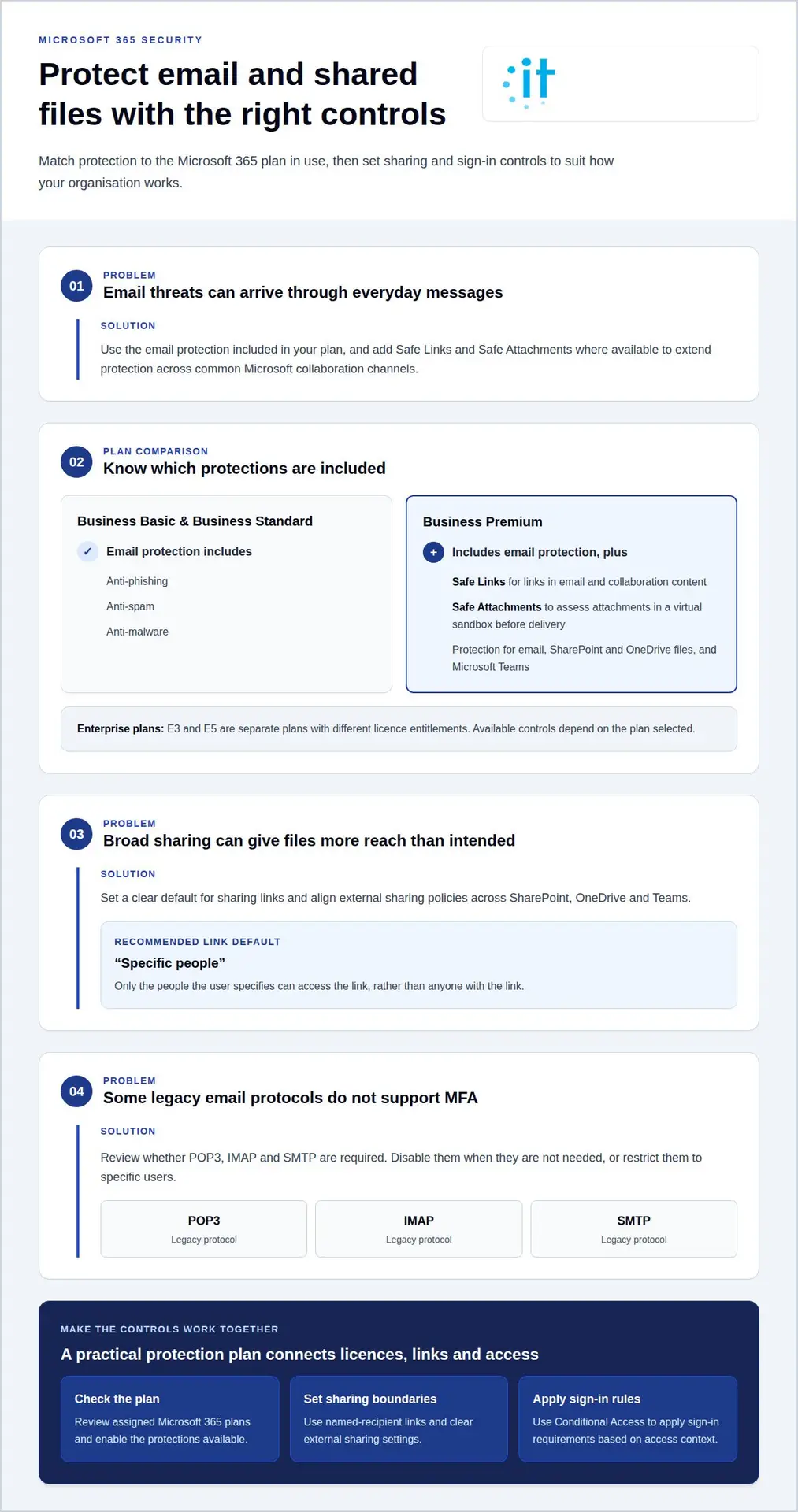
Microsoft 365 Business Basic, Business Standard and Business Premium include anti-phishing, anti-spam and anti-malware protection for email. Business Premium also includes Defender for Office 365 Safe Links and Safe Attachments for email, files in SharePoint and OneDrive, and Microsoft Teams. These controls help protect links and files across common collaboration channels.
Safe Attachments checks email attachments in a virtual sandbox before delivery, assessing files in a controlled environment before they reach a mailbox. Safe Links helps protect users from harmful links in email and collaboration content. Together, they extend email protection to files and links shared through Microsoft services.
Plan selection affects which controls are available. Business Premium includes Safe Links and Safe Attachments, while the listed Business Basic and Business Standard protections include anti-phishing, anti-spam and anti-malware for email. E3 and E5 are separate enterprise plans with different licence entitlements. For New Zealand organisations, the relevant comparison is the security features included in each chosen licence and its NZ$ pricing arrangement.
Key risks include phishing links, harmful attachments, legacy authentication and overly broad external sharing. POP3, IMAP and SMTP are legacy email protocols that don’t support multifactor authentication. They should be disabled when they aren’t required, or restricted to specific users. External sharing can also expose sensitive files if links grant broader access than intended.
For sharing links, the recommended default is “Specific people (only the people the user specifies).” This limits access to named recipients instead of allowing anyone with a link to open a file. A security partner can apply this setting alongside external sharing policies for SharePoint, OneDrive and Teams. Conditional Access can complement these controls by applying sign-in requirements based on the access context.
Settings need to work together. A partner can review which Microsoft 365 plans are assigned, enable the protections available, and align sharing defaults with how teams collaborate. For example, a project team sharing sensitive documents externally may need named-recipient links and clear access boundaries. This keeps collaboration practical while reducing unnecessary exposure.
To make these controls consistent across email and cloud apps, review Microsoft 365 security settings as part of a coordinated protection plan.
Three plans include Microsoft Teams for communication, collaboration, and sharing. CISA advises using an Office 365 Global Administrator account only when absolutely necessary.
3. Multi-factor authentication for administrators and users
A well-managed MFA rollout starts by identifying the accounts and sign-in paths people use. Include standard staff accounts, administrator accounts and shared business workflows in the review. This helps reveal where authentication requirements need to apply, including access to Exchange, Microsoft 365 files and collaboration tools. The aim is consistent protection that fits how each group works.
Administrator accounts need particular attention. Office 365 Global Administrator accounts aren’t automatically protected by MFA. Enabling the Security Defaults feature helps enforce MFA for administrators, while Microsoft 365 Business Basic, Business Standard and Business Premium include security defaults. Administrators should keep privileged accounts for administration, separate from routine email and collaboration.
Phishing-resistant sign-in methods provide a stronger option than SMS or voice-call verification. FIDO2 security keys and passkeys are examples that can help resist phishing attempts that capture passwords or verification codes. A security review can identify which user groups need these methods, then plan their rollout around the devices and sign-in processes people use.
Microsoft Entra ID is retiring Microsoft-provided SMS and voice authentication for self-service password reset, with a 50-day transition period for organisations. Review recovery methods alongside sign-in settings. Account recovery planning should consider administrators, standard users and people who need access while travelling or using a replacement device.
Conditional Access can apply sign-in requirements based on factors such as the account, application or access context. Basic MFA and advanced Conditional Access policies are separate controls. Premium licensing is required for advanced policies that enforce MFA. A review should map policies to actual user groups and applications, supporting secure access without unnecessary barriers to everyday work.
Email authentication also helps build trust in messages sent from an organisation’s domain. Configure SPF, DKIM and DMARC to help reduce email-related security risks. These controls complement account sign-in protection. For example, a review can bring Exchange authentication settings, user sign-in methods and administrator protections together in one plan.
A structured authentication review should document account coverage, administrator settings, recovery options, licensing and email authentication. This gives decision-makers a clear view of sign-in protection across the organisation. It also provides a practical basis for updating access as people join teams, change responsibilities or adopt collaboration tools.
4. Security baselines, audits and framework alignment
For New Zealand organisations, Microsoft 365 security settings should support the organisation’s obligations under the Privacy Act 2020 when handling personal information. Access controls, audit records, retention decisions and recovery planning can help make that handling more accountable. Microsoft 365 configuration supports privacy management, but does not by itself define every obligation.
A security baseline gives administrators a consistent set of configuration settings to assess across a tenant. Microsoft Secure Score provides a dashboard to track and prioritise security and compliance changes. Regular reviews help identify settings that need attention and prioritise changes according to business needs and available capabilities.
Audit records show activity across Microsoft 365 services. Before running queries, administrators must enable the Unified Audit Log in the Security and Compliance Center. It records events from Exchange Online, SharePoint Online, OneDrive, Azure AD, Microsoft Teams, Power BI and other Office 365 services. This can help connect activity across email, files and collaboration.
Retention affects how far back an investigation can look. Audit-log retention can vary by licensing and configuration, so organisations should check their settings against investigation and record-keeping needs. Audit-log retention can vary, so organisations should review whether it meets their investigation and record-keeping needs. Unified Audit Log retention beyond default settings is recommended, so the chosen period should reflect investigation and record-keeping needs.
Monitoring turns records into useful signals. CISA recommends alerts for suspicious locations and accounts that exceed sent-email thresholds. CISA also recommends integrating Office 365 logs with other log-management and monitoring solutions, which can help correlate activity. For example, a security team can review an unusual sign-in alongside changes to files or permissions.
Framework alignment helps organisations map technical controls to a recognised security structure. NIST 800-53, CIS Controls and ISO 27001 are examples cited in relation to device posture enforcement. A security partner can assess how device checks, password settings and privileged access fit the chosen framework, then record gaps and planned improvements.
Microsoft 365 backup and retention serve different purposes. Retention governs how long information or audit records remain available, while backup planning considers recovery after accidental deletion or ransomware. A partner should identify which data and tenant configurations need protection, set retention and recovery priorities, then test and validate restore procedures for tenant configuration backups.
For a practical audit, bring together Secure Score findings, Unified Audit Log coverage, retention settings, alerts and restore-test results. This gives decision-makers a clearer view of control status and next steps. The review can also help align Microsoft 365 settings with privacy priorities and the organisation’s chosen security framework.
New Zealand organisations should configure Microsoft 365 to support accountable handling of personal information, using access controls, audit records, appropriate retention decisions and recovery planning. These settings support privacy management but do not define every obligation under the Privacy Act 2020.
5. Cloud application security
Microsoft 365 security best practices extend beyond email. SharePoint, OneDrive and Microsoft Teams hold and share organisational information, so their access and sharing settings should be considered together. Microsoft Defender for Office 365 built-in protection enables protection for these services, extending safeguards across common collaboration locations.
External sharing is a key policy decision. A SharePoint link intended for a project partner could expose information more widely if its access scope is too broad. Set external sharing policies for SharePoint, OneDrive and Teams, and limit collaboration to people preapproved by IT, known as Existing Guests. This gives teams a defined way to work with external contacts.
Link settings determine who can open a file. The recommended default is “Specific people (only the people the user specifies).” This prompts staff to name intended recipients instead of creating a link that anyone can use. A security partner can assess whether this default suits the organisation’s work and align sharing rules across the tenant.
Microsoft says businesses can use Microsoft Purview Data Loss Prevention to safeguard company data in email, Teams, file sharing and calendars. A policy can identify specified sensitive information and apply controls when someone tries to share it. For example, an organisation can decide how to handle a document containing confidential business details when it is shared outside the usual team.
Consider Exchange Online and collaboration apps as connected routes for information. A message might include a file stored in SharePoint, or a Teams conversation might link to OneDrive content. Reviewing each service in isolation can miss how permissions and sharing settings interact. A joined-up review maps where data is stored, who can access it and which actions are allowed.
Cloud app controls should reflect how staff work. A global rule may suit information that should never be shared externally, while a configured exception can support an approved business process. The distinction is between deliberate access and broad access that remains after a project ends. Reviewing guest access and sharing activity helps keep those boundaries current.
A further element of Microsoft 365 security best practices is assessing these settings as a connected environment. A practical review can map SharePoint, OneDrive, Teams and Exchange Online against information types, internal roles and external collaboration needs. It can then identify which controls should apply globally and where tailored settings make sense, giving decision-makers a clearer view of cloud app exposure.
IT Works: Cyber Security
Wellington-based IT Works helps New Zealand organisations bring Microsoft 365 security controls into a coordinated plan. Its Cyber Security and Microsoft 365 Management services can support access reviews, email protection, authentication settings, audit processes and cloud app controls.
This is a useful next step when security settings have grown over time, responsibilities are unclear, or your organisation is planning changes to Microsoft 365. A joined-up review can connect technical controls with how your teams use email, files and collaboration apps, then identify practical priorities for ongoing management.
For business owners and leadership teams, the aim is clear oversight and confident day-to-day work, not complexity for its own sake. Discuss your Microsoft 365 security priorities with IT Works.
Make security part of everyday decision-making
Microsoft 365 security best practices are most valuable when they keep pace with changes to your people, information and business priorities. Treat security as an ongoing management responsibility, not a one-off configuration task. Clear ownership helps ensure that new apps, changing work patterns and evolving use of AI are considered alongside existing controls.
IT Works can connect Cyber Security with Managed IT Services, helping organisations align protection with day-to-day technology management. Its AI & Automation offering can also support organisations considering new ways of working, with security considered as part of those decisions. The right priorities depend on how your organisation uses Microsoft 365 and the information it manages.
A considered plan gives leaders a practical basis for decisions and helps staff work with confidence. Start a conversation about what effective Microsoft 365 security could look like for your organisation.
With clear priorities and the right support, security can enable confident, productive work.
Frequently Asked Questions
How can a security partner apply user tags to help improve Microsoft 365 security?
A security partner can use tags to connect user attributes with access decisions. For example, a project tag can identify staff and contractors who need a shared workspace, while a role tag can distinguish approvers from read-only users. Reviewing these groups when a project ends or responsibilities change helps keep access aligned with current work, rather than allowing it to linger.
What are Microsoft’s current security best practices for Microsoft 365?
Microsoft 365 security practices should combine identity controls, email protection, safe collaboration, monitoring and recovery planning. A security partner can assess how those measures fit together across your organisation, then prioritise changes based on business impact and available licences. For example, a setting that protects sensitive information may need to be balanced with a team’s legitimate external collaboration needs.
How can a security partner configure Microsoft Entra ID MFA and Conditional Access to secure Microsoft 365?
A security partner can map sign-in requirements to user roles, devices and business applications, then test them against representative work patterns. For example, administrators may need stronger sign-in conditions than staff using routine collaboration tools. The partner can also plan for the effects of policy changes on travelling staff, new starters and account recovery, reducing the risk of disrupting legitimate access.
How can a security partner secure Exchange Online, SharePoint, OneDrive and Teams sharing and access?
A security partner can map how information moves between Exchange Online, SharePoint, OneDrive and Teams, then align permissions with each use. For example, a customer document might arrive by email, move into a project site and then be shared in Teams. Reviewing that flow helps identify who owns the information, who needs access and what should happen when the project or working relationship ends.
How can a security partner configure Microsoft 365 auditing, alerting and incident response?
A security partner can connect audit events and alerts to a response process with clear responsibilities. The process can define who reviews an alert, how related account and file activity is examined, and how decisions are recorded. For example, an unexpected mailbox change can be assessed alongside sign-in activity before the team decides on containment and recovery actions. Regular exercises can clarify roles.
How can a security partner assess Microsoft 365 security posture using Secure Score and security baselines?
A security partner can use Secure Score and a baseline review to create a prioritised improvement plan instead of treating every recommendation equally. Assess each proposed change for business benefit, user impact, technical dependencies and ownership. For example, a control affecting a specialist workflow may need a planned transition. Recording decisions and progress gives leadership a useful view of security work over time.