
The strongest benefits of upgrading to Microsoft 365 Business Premium aren’t better versions of Word or Excel. They’re the added security and device management capabilities that can help people work confidently across the devices they use. For growing New Zealand organisations, the distinction matters: the right plan should address real business needs, not simply add features.
It’s reasonable to ask whether your team will use what’s included, whether stronger security will add to the administration workload, and whether the ongoing licence commitment is worthwhile. Business Premium is most valuable when its capabilities meet defined needs. If your current plan already supports the way your organisation works, an upgrade may not be necessary.
This article explains how Business Premium compares with other Microsoft 365 business plans, what its security and management features can offer, and why device readiness matters. Use the guidance to weigh potential benefits against your priorities and choose a considered next step without disrupting the tools your team relies on.
Key Takeaways
- Assess the benefits of upgrading to Microsoft 365 Business Premium against your organisation’s security, device management and working needs.
- Compare plans by their capabilities, then consider the configuration and staff guidance needed to make those capabilities useful.
- For growing organisations, weigh the additional capabilities against the ongoing commitment and your current requirements.
- Plan any change by reviewing licences, assigning administration responsibilities and communicating clearly with staff.
- Review the outcomes after the change to see whether the plan is meeting the needs you identified.
What upgrading to Microsoft 365 Business Premium means for your organisation
Moving to Microsoft 365 Business Premium is a plan decision, not an automatic improvement for every organisation. The right choice depends on your existing licences, how staff work and the business requirements your technology needs to support. For a Wellington organisation, that might mean reviewing how people access work systems, how devices are managed and how consistently security settings are applied.
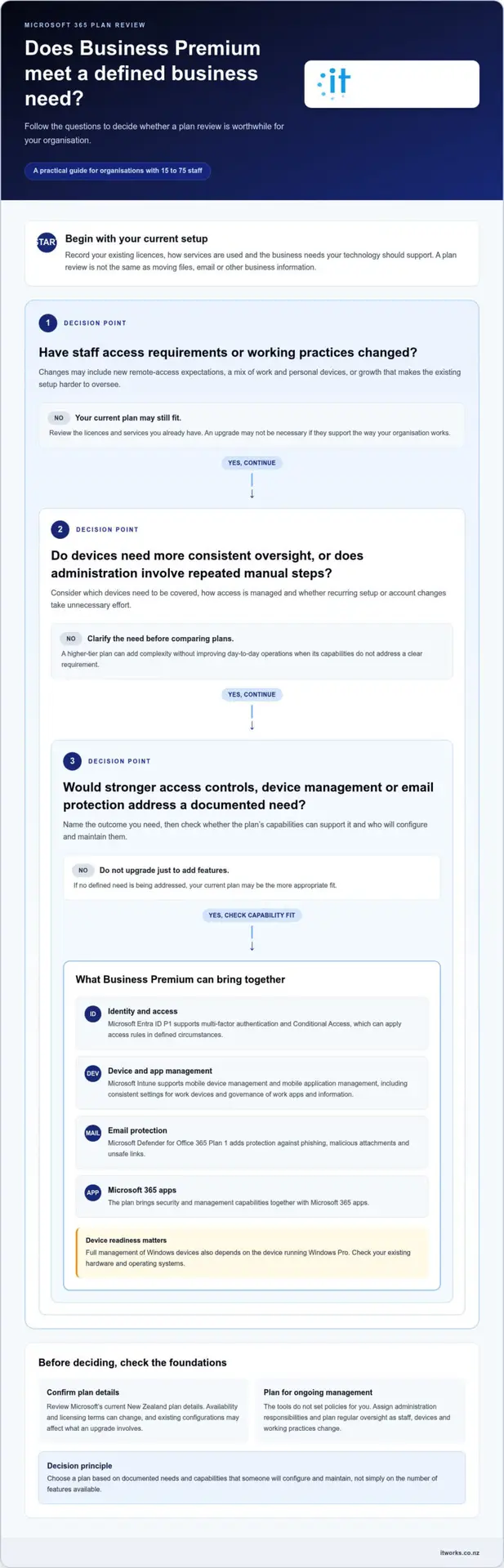
Match plan capabilities to documented needs. This is a practical starting point when weighing the benefits of upgrading to Microsoft 365 Business Premium. A feature is valuable when it addresses a clear requirement and someone is responsible for configuring and maintaining it. Without that connection, a higher-tier plan can add complexity without improving day-to-day operations.
What changes when a business reviews its Microsoft 365 plan?
A plan review is not the same as migrating business data. It means assessing your subscriptions, the services already configured and whether your plan fits the way people work. A subscription change may affect which capabilities are available, but it doesn’t automatically mean moving files, email or other business information.
Start by recording your current licences and how the services are used. The Microsoft 365 name covers a range of plans and components, as outlined in the Microsoft 365 Wikipedia article. For a purchasing decision, review Microsoft’s current New Zealand plan details before relying on a particular feature being included. Availability and licensing terms can change, and existing configurations may affect what an upgrade involves.
Which business challenges can prompt an upgrade review?
Growth can make a previously simple setup harder to oversee. Hiring, a mix of work and personal devices, or changing expectations about remote access can prompt a closer look at how accounts and devices are managed. The aim is to understand whether your current approach remains consistent as work practices evolve.
Repeated administration is another useful signal. If setting up devices, changing access or managing accounts involves the same manual steps each time, a plan review can help identify where more consistent processes may be possible. Security improvements can also build confidence: clear access practices and better oversight help people understand how organisational systems are managed. The focus is on reliable processes, not fear.
Before deciding, write down the needs behind the review. Consider:
- Which staff access requirements have changed?
- Which devices need to be covered by your management approach?
- Where does administration require repeated effort?
- Which security outcomes would give leaders and staff greater confidence?
These answers give your organisation a practical basis for assessing plan options. They also help distinguish a genuine business requirement from a feature that is available but not needed.
Microsoft 365 Business Premium benefits for security and day-to-day work
Business Premium brings security and management capabilities together with Microsoft 365 apps. Its value isn’t simply having more tools available. It comes from configuring them to support how your organisation manages staff access, protects devices and email, and helps people work consistently. These are practical benefits of upgrading to Microsoft 365 Business Premium when they address needs your business has identified.
How can stronger identity and device management help?
Identity management is about deciding who can access organisational accounts and under what conditions. Business Premium includes Microsoft Entra ID P1, which supports features such as multi-factor authentication and Conditional Access. Multi-factor authentication asks people to verify their identity in more than one way. Conditional Access can apply access rules in defined circumstances, helping administrators shape how users connect to work services.
Device management is another part of the picture. Microsoft Intune supports mobile device management and mobile application management. For example, device management can apply consistent settings to work devices, while application management can help govern how work apps and information are used. Full management of Windows devices also depends on the device running Windows Pro, so consider your existing hardware and operating systems.
Managed access and device practices can make security more consistent by applying clear rules across the people and equipment that connect to work. The tools don’t set those rules for you. Your organisation still needs sensible policies, clear administration responsibilities and regular oversight so settings keep pace with changes in staff, devices and working practices.
Where could staff and administrators notice practical benefits?
Administrators may find it easier to work towards a consistent approach when user identities, devices and settings are managed through connected tools. Instead of treating each situation as a one-off, they can establish repeatable processes for setting up devices or adjusting access when someone’s role changes. The time and effort involved depend on how the tools are configured and managed, so assess the actual process rather than assuming a particular saving.
Email protection is also part of the plan’s security capabilities. Microsoft Defender for Office 365 Plan 1 adds protection against phishing, malicious attachments and unsafe links. Microsoft Defender for Business provides endpoint security capabilities, including threat and vulnerability management and tools to detect and respond to activity on devices. Together, these tools can support a more coordinated approach to email and device security, alongside staff awareness and established procedures.
For staff, consistent access and device settings can make the rules for using organisational systems clearer. For administrators, a more connected view can support decisions about who has access and which devices are covered. Information protection still depends on how access, email and devices are configured, as well as the policies and practices your organisation puts in place.
Before enabling features, review Microsoft’s current New Zealand plan information and map each capability to a business need and an owner. IT Works’ Microsoft 365 security and management can help connect the plan’s tools with your organisation’s wider technology approach.
Business Premium compared with other Microsoft 365 plans
A useful comparison starts with your organisation’s current plan, not a feature list in isolation. Microsoft 365 Business Basic, Business Standard and Business Premium serve different needs, while Apps for business is another plan to consider. The key question is which capabilities your team needs and whether your subscriptions or other tools already provide them.
Use the table as a prompt for review, not as a substitute for checking Microsoft’s current New Zealand plan details. Inclusions and licensing conditions can change. Also distinguish what a plan includes from the work required to configure it, manage it and help staff use it well.
| Area to compare | What to assess | When additional capability may matter |
|---|---|---|
| Productivity and collaboration | Check which apps and services your current subscriptions provide, and how staff use them. | Review this if your organisation’s work practices or software needs have changed. |
| Identity and access | Compare the access controls in your current plan with the rules your organisation wants to apply. | Additional identity capabilities may be relevant if access needs to reflect roles, circumstances or changing work arrangements. |
| Device management | Identify which devices need consistent settings and how they’re managed today. | Consider additional management tools if oversight is fragmented or device practices vary across the organisation. |
| Security and administration | Map current email and device protections, administration tasks and tool ownership. | Business Premium may be worth assessing if its security and management capabilities address defined gaps. |
Which plan differences should decision-makers assess?
Business Premium’s distinction is its additional security and management layer alongside Microsoft 365 productivity capabilities. Whether that changes your position depends on what your existing plan already provides. Business Basic, Business Standard and Apps for business aren’t interchangeable, so compare their current inclusions with actual staff requirements rather than relying on plan names alone.
Keep three things separate: the capability included in a subscription, the configuration needed to make it work for your organisation, and the ongoing administration or staff guidance it requires. A licence doesn’t automatically create an access policy, establish device settings or ensure people understand a new process. Assign clear responsibility for each.
Is an upgrade better than combining existing tools?
Not necessarily. Your organisation may already use separate tools that meet its security or management needs. Compare their overlapping functions, who administers them, how information is shared between them and whether staff face different processes for similar tasks. A consolidated approach may make oversight more coherent, while a well-managed mix of tools may better suit particular requirements.
When weighing the benefits of upgrading to Microsoft 365 Business Premium, compare the current and proposed setups against the same needs: suitable protection, manageable administration and a clear staff experience. If your existing plans and tools already meet those needs, an upgrade may add little practical value. If important capabilities are missing or responsibility is unclear, a structured comparison can show whether changing plans would help.
Is Business Premium worth it for growing organisations?
Business Premium is worth considering when its additional capabilities meet requirements your organisation can clearly describe. Staff numbers alone don’t determine whether it’s the right plan. A 15-person team with managed devices and specific access needs may have different priorities from a 75-person organisation whose current tools already provide suitable oversight.
For New Zealand organisations, make the decision against day-to-day requirements, current subscriptions and the way Microsoft 365 is configured. Don’t treat a plan change as a result in itself. The useful question is whether it would support a more consistent approach to security, administration or staff access.
When might Business Premium be a stronger fit?
The plan may be a stronger fit if your organisation needs clearer oversight of work devices, more defined access controls or a more connected way to manage Microsoft 365 security capabilities. For example, if staff use a range of devices, consistent management may help administrators apply organisational settings more reliably. If access requirements vary by role or working arrangement, additional identity controls may support rules that better reflect those needs.
These are reasons to assess the plan, not guarantees of a particular outcome. Suitability depends on your existing subscriptions, the devices and services in use, and the configuration and ongoing management required. Make sure the organisation has the capacity and clear responsibility to put selected capabilities into practice.
When should a business pause before changing plans?
Pause if the reasons for upgrading are vague, if included capabilities have no clear use, or if nobody is responsible for administration. A change is harder to assess without a shared picture of current licences, existing tools, staff requirements and desired outcomes. Document these first, then decide whether Business Premium addresses a defined need or your current approach is sufficient.
A practical fit-and-considerations check can help decision-makers weigh both sides:
- Security practices: Identify which access and protection needs are already met, and where a specific capability could improve consistency.
- Device oversight: Record the devices in use and whether your current management approach gives administrators the oversight they need.
- Administration capacity: Decide who will configure settings, manage changes and review how the tools are being used.
- Staff requirements: Consider whether proposed changes fit how people work and what communication or guidance they may need.
- Current environment: Review subscriptions and configured services before comparing plan options.
Documenting how your Microsoft 365 services are managed, alongside these requirements, can reveal where responsibilities or processes need attention. IT Works’ Microsoft 365 management guide offers broader context for that review.
There’s no universal answer. The benefits of upgrading to Microsoft 365 Business Premium depend on whether the plan’s capabilities fit your requirements and can be managed effectively. A documented review gives leaders a sound basis to proceed, refine the current setup or wait until needs are clearer.
Plan a Microsoft 365 Business Premium upgrade with confidence
A considered upgrade starts with the business outcome, then works through the licences, settings and staff changes needed to support it. This keeps Microsoft 365 decisions connected to wider priorities such as continuity, security confidence and clear accountability. It also gives leaders a practical way to review whether the change is working after implementation.
What should be included in an upgrade review?
Begin with a clear picture of the current environment. Record subscriptions, users, devices, access requirements and services already configured. Then agree what the organisation wants to improve and who will own the related administration. Before changing licences or settings, review Microsoft’s current New Zealand requirements and feature availability, and consider how the change fits with existing systems.
- Document needs: Describe the business requirements the upgrade should address, rather than starting with a feature list.
- Review licences: Confirm current subscriptions and identify which users need which capabilities.
- Assess configuration: Understand existing settings, devices, access arrangements and any tools that interact with Microsoft 365.
- Plan the change: Set responsibilities, timing, staff communication and a process for handling questions or issues.
- Check outcomes: Review whether the change supports the agreed needs and whether staff and administrators can use the new arrangements as intended.
Staff communication belongs in the plan, not just in a note at the end. Explain what is changing, what staff may notice and where responsibilities sit. Clear administration ownership matters too: someone needs to manage settings, oversee access and review the environment as business requirements evolve. These steps help bridge the gap between purchasing capabilities and putting them to practical use.
How can IT Works support a considered decision?
As a Wellington-based technology partner, IT Works connects Microsoft 365 decisions with the wider needs of an organisation. A practical review can consider current services, security priorities, administration and staff experience together, then clarify options and responsibilities. The aim is an informed decision that fits business goals, not a predetermined plan change.
Microsoft 365 is one part of a broader operating environment. Organisations reviewing resilience can also explore cybersecurity guidance, while managed IT support can provide context for ongoing service management. Together, these perspectives can help leaders assess the benefits of upgrading to Microsoft 365 Business Premium alongside continuity, oversight and day-to-day needs.
A useful next step is to bring your current setup and priorities into one conversation. That gives your organisation a grounded basis for deciding whether to proceed, adjust the plan or maintain the existing approach.
Make your next Microsoft 365 decision a considered one
Your next step doesn’t need to be a plan change. Start by identifying one business priority your current Microsoft 365 setup should support, then decide how you’ll recognise progress and who will oversee it. That gives your leadership team a useful basis for deciding whether to act now, refine existing settings or revisit the question as needs change.
The benefits of upgrading to Microsoft 365 Business Premium are strongest when its capabilities fit an organisation’s needs and are managed as part of its wider technology environment. IT Works brings Microsoft 365 management together with cybersecurity and strategic technology advice, helping New Zealand organisations connect practical decisions with business priorities. For growing organisations, this outcome-focused perspective can help keep planning clear and proportionate.
A thoughtful review can give your team confidence in whichever direction you choose. Progress might mean upgrading, improving how existing tools are managed, or clarifying ownership and priorities.
With a clear purpose and the right people involved, your next technology decision can support steady, confident progress.
Frequently Asked Questions
Can a business upgrade its Microsoft 365 plan without changing email addresses?
Yes. Changing a Microsoft 365 plan does not usually require changing staff email addresses, provided the organisation keeps the same accounts and email domain. The benefits of upgrading to Microsoft 365 Business Premium can be considered separately from the addresses customers and colleagues already use. Before changing a subscription, review how each mailbox, alias and domain is configured, and include any services linked to those accounts in the change plan.
Will staff need to learn a new system after upgrading to Business Premium?
Usually, staff can continue using familiar Microsoft 365 apps, so a plan change doesn’t automatically mean learning a new productivity system. They may notice new sign-in prompts, device requirements or security steps if administrators configure them. A short, role-specific briefing can explain what is changing and what staff need to do, such as responding to an identity check or following a revised process for accessing work information.
Can different Microsoft 365 plans be used for different staff?
Yes, an organisation can generally assign different Microsoft 365 plans to different users, subject to Microsoft’s current licensing terms. People with different responsibilities may need different apps or services. Before assigning plans, map each role’s requirements and consider shared resources such as email, files and meetings. This helps avoid access gaps and clarifies who manages each user’s subscriptions as roles change.
Does Microsoft 365 Business Premium include Microsoft Teams in New Zealand?
It depends on the specific subscription. Microsoft offers Business Premium plans with Teams and a version without Teams, so the plan name alone may not tell you which one your organisation has. Check the exact licence in your Microsoft 365 account and review Microsoft’s current New Zealand plan details before making a decision. If your organisation uses another meetings platform, consider how staff will access shared meetings and collaboration.
Does upgrading to Business Premium include Microsoft Copilot?
No. Don’t assume a standard Business Premium subscription automatically includes Microsoft Copilot. Copilot is available through a separate with-Copilot licensing option, and eligibility and terms can depend on the current offer. If your organisation is considering it, first identify the work tasks it should support, then review Microsoft’s current New Zealand licensing details. This keeps the Copilot decision separate from the security and management capabilities being assessed in a plan upgrade.
What happens to existing files when a business changes Microsoft 365 plans?
Existing files can remain available, but access depends on the accounts and services covered by the subscriptions. Before changing plans, list the shared SharePoint sites, Teams-connected files and OneDrive content staff rely on, then identify who owns each resource. After the change, test access for representative users, especially those with different licences. This practical check can identify permission or service-access issues without assuming every user’s experience will be the same.
Can staff use their own devices with Microsoft 365 Business Premium?
Staff may be able to access work services from personal devices, depending on the organisation’s policies and how access is configured. For example, an organisation might allow a work app while applying controls to its business information without managing the entire personal device. Decide which devices and apps are permitted, explain what the organisation can manage, and make sure staff understand access and privacy expectations before enabling use.